# Knowledge Base
Ajax Search Pro for WordPress knowledge base
This knowledge base contains advanced tips and tricks for Ajax Search Pro for WordPress plugin.
{% hint style="success" %}
Don't have an Ajax Search Pro license yet? Check out [the pricing!](https://ajaxsearchpro.com/pricing/)
{% endhint %}
### I need help with installing and setting up the plugin
Please check the [plugin documentation](https://documentation.ajaxsearchpro.com/) first.
### How do I implement the custom codes suggested in the tutorials?
Please read the [Safe Coding Guideline](/safe-coding-guideline).
# Safe Coding Guideline
How to safely edit your theme or plugin files
## How do I implement the suggested custom codes?
Most section of this knowledge base involve custom codes, that need to be implemented either [via a code snippets plugin](https://snipcraftpro.com/) or placed in your theme/child theme **functions.php (not recommened)**
{% hint style="danger" %}
Before starting with any of the listed methods, **make sure to have a full website back-up just in case**. You never know what you may accidentally delete or change.
{% endhint %}
### Via SnipCraft Code Snippets plugin (Recommented)
This method is much easier, most snippets should work all right with it.
* Download and install the [SnipCraft](https://snipcraftpro.com/) plugin
* Use the plugin back-end to add and manage custom codes
* IMPORTANT: Make sure the snippet is set to **run everywhere**
### Theme or Child theme functions.php file (Advanced)
This method is safer as you have direct access to the files and any issues can be undone quickly. However switching the theme will also turn off all custom codes, as they have to be carried over to the new theme.
* Optimally, you should use a [child theme](https://www.smashingmagazine.com/2016/01/create-customize-wordpress-child-theme/). Child theme files does not change during theme updates, leaving the changes in tact.
* Open up the **functions.php** file in your active theme/child theme directory via an (s)FTP file editor. Notepad++, Filezilla and WinSCP are great tools for that. We do not recommend using the theme editor that wordpress offers, for safety reasons. [Tutorial here](https://www.converticacommerce.com/support-maintenance/how-to-edit-functions-php-in-wordpress/).
* The file is usually located at **wp-content/themes/your-current-theme/functions.php**
* Place the recommended code snippet at the bottom of that file.
* Save, and it is done
###
# Filters
# Query & Output
# asp\_query\_args
The *asp\_query\_args* filter provides a possibility to **add/remove/change** query arguments right before they are passed to the ajax search pro main query.
This filter is executed **after** the search options were processed!
```php
// Classic Usage
add_filter("asp_query_args", "asp_query_args_change", 10, 2);
function asp_query_args_change($args, $search_id) {
// Do your stuff with the $args array
// ....
// Then return
return $args;
}
// Shorter version with type safety and anonymous function
use WPDRMS\ASP\Models\SearchQueryArgs;
add_filter("asp_query_args", function(SearchQueryArgs $args, int $search_id) {
return $args;
}, 10, 2);
```
### Parameters
* **$args** *(SearchQueryArgs)* - the object of the arguments (structure detailed in chapter below). This object implements the **ArrayAccess** interface in a way that all of it's properties are accessible as array keys as well.
* **$search\_id** *(int)* - the current search ID
#### Example: Explicitly changing the post types and post fields to search
```php
// Classic Way
add_filter("asp_query_args", "asp_query_args_change", 10, 2);
function asp_query_args_change($args, $search_id) {
// Changing post types to post and page
$args['post_type'] = array('post', 'page');
// Search only title and content
$args['post_fields'] = array('title', 'content');
return $args;
}
// Shorter version with type safety and anonymous function
use WPDRMS\ASP\Models\SearchQueryArgs;
add_filter("asp_query_args", function(SearchQueryArgs $args, int $search_id) {
$args->post_type = array('post', 'page');
$args->post_fields = array('title', 'content');
return $args;
}, 10, 2);
```
## Accepted Properties of the $args object
For the complete **$args** source list with type hints and accepted values please check: \
`wp-content/plugins/ajax-search-pro/includes/classes/Models/SearchQueryArgs.php`
The **$args** object is the heart and soul of this filter. By changing it's key values you can directly affect the search outcome.
The default values of the key arguments depend on the search intance configuration and the passed arguments from the front-end before the search process.
{% hint style="info" %}
It is recommended to treat the **$args** variable as **SearchQueryArgs** object instad of an array to get type hints in your editor.
{% endhint %}
## Generic arguments
### 's' - Search phrase
The search phrase.
$args->s = "some phrase";

// Or the classic way
$args['s'] = "some phrase";
### 'search\_type' - Search content types
Determines the search content types. If you wish to return different content types as defined in the search instance option, then this needs to be properly stated within this option.
**Type: array, Possible values:**
* *cpt* -> posts, pages, custom post types
* *taxonomies* -> tags, categories and taxonomy terms based on taxonomy slug
* *users* -> users
* *blogs* -> multisite blog titles
* *buddypress* -> buddypress groups or activities
* *comments* -> comment results
* *attachments* -> file attachments
```php
// Default:
$args['search_type'] = array('cpt');
// Usage:
$args['search_type'] = array('cpt', 'taxonomies');
```
### 'engine' - Search engine type
The search engine to use (regular or index). Change this to "index" only if the index table is configured!!
**Type: string, Possible values: regular, index**
```php
// Default
$args['engine'] = 'regular';
// Changing to index
$args['engine'] = 'index';
```
### 'keyword\_logic' - Keyword logic
The keyword connection logic which is used for the entered search phrases.
**Type: string, Possible values:**
* OR (default) - matches if either of the phrases matches, even partially
* AND - matches if both phrases match, even partially
* OREX - matches if either of the phrases matches, only whole words
* ANDEX - matches if both phrases match, only whole words
```php
// Default
$args['keyword_logic'] = 'OR';
// Force change to AND
$args['keyword_logic'] = 'AND';
```
### Global results limit
The maximum number of results set. If set to 0, then the result type limits are used instead.
If explicitly set to higher than 0, then the results count is distributed evenly for each source.
```php
// Default
$args['limit'] = 0;
// Set to any integer
$args['keyword_logic'] = 50;
```
### Results limit by results type
Only works if the 'limit' argument is set to 0. Defines limits for each source. The '\_override' suffixed arguments are for the non-ajax search results.
```php
// Custom post type limits
$args['posts_limit'] = 10;
$args['posts_limit_override'] = 50;
$args['taxonomies_limit'] = 10;
$args['taxonomies_limit_override'] = 20;
$args['users_limit'] = 10;
$args['users_limit_override'] = 20;
$args['blogs_limit'] = 10;
$args['blogs_limit_override'] = 20;
$args['buddypress_limit'] = 10;
$args['buddypress_limit_override'] = 20;
$args['comments_limit'] = 10;
$args['comments_limit_override'] = 20;
$args['attachments_limit'] = 10;
$args['attachments_limit_override'] = 20;
```
## Post & custom post type search related arguments
These arguments affect the post/cpt search.
### 'post\_type' - Post type
Array of post types to search within.
**Type: array, Possible values: post, page, ..any registered post type slug**
```php
// Default
$args['post_type'] = array('post', 'page');
// Search in product as well
$args['post_type'] = array('post', 'page', 'product');
```
### 'post\_status' - Post statuses
Array of post statuses
**Type: array, Possible values: publish, draft, private, trash, ..any registered custom status**
```php
// Default
$args['post_status'] = array('publish');
// Search in drafts as well
$args['post_status'] = array('publish', 'draft');
```
### 'post\_fields' - Post fields to search in
Array of search fields to search in
**Type: array, Possible values: 'title', 'content', 'excerpt', 'terms'**
```php
// Default
$args['post_status'] = array('title', 'content', 'excerpt', 'terms');
```
### 'post\_custom\_fields' - Post custom fields to search
Array of custom field name
**Type: array, Possible values: any custom field name**
```php
// Default
$args['post_custom_fields'] = array();
// Assigning custom field names
$args['post_custom_fields'] = array('custom_field1', 'custom_field2');
```
### 'post\_in' - Posts by IDs
Limit potential results pool to array of IDs. *This only affects the potential result pool, all the other defined criteria must also match!*
**Type: array, Possible values: existing post IDs**
```php
// Default
$args['post_in'] = array();
// Include certain posts
$args['post_in'] = array(1, 2, 3, 4);
```
### 'post\_not\_in' - Posts exclusion by IDs
Explicity exclude IDs from search results
**Type: array, Possible values: existing post IDs**
```php
// Default
$args['post_not_in'] = array();
// Include certain posts
$args['post_not_in'] = array(5, 6, 7, 8);
```
### Primary and secondary ordering
**Type: string, Possible values:** *'relevance DESC', 'post\_date DESC', 'post\_date ASC', 'post\_title DESC', 'post\_title ASC'*
```php
// Default
$args['post_primary_order'] = "relevance DESC";
$args['post_secondary_order'] = "post_date DESC";
```
### 'post\_tax\_filter' - Filter posts by taxonomy terms
Array of taxonomy term rules.
**Type: array, Possible values: array of rules**
```php
// Default
$args['post_tax_filter'] = array();
// Exclude posts from categories 1,2,3,4 and include from 5,6,7,8
$args['post_tax_filter'] = array(
array(
'taxonomy' => 'category',
'include' => array(1, 2, 3, 4),
'exclude' => array(5, 6, 7, 8),
'allow_empty' => true // Allow results, that does not have connection with this taxonomy
)
);
// Exclude Posts from certain categories, include from certain tags
$args['post_tax_filter'] = array(
array(
'taxonomy' => 'category',
'include' => array(),
'exclude' => array(5, 6, 7, 8)
),
array(
'taxonomy' => 'post_tag',
'include' => array(10, 11, 23, 44),
'exclude' => array()
)
);
```
### 'post\_meta\_filter' - Filter posts by post meta (custom fields)
Array of custom field rules.
**Type: array, Possible values: array of rules**
```php
// Default
$args['post_meta_filter'] = array();
// Usage with operators
$args['post_meta_filter'] = array(
array(
'key' => 'age', // meta key
'value' => array( 3, 4 ), // int|float|string|array|timestamp|datetime
// @param string|array compare
// Numeric Operators, also used for timestamp value
// '<' -> less than
// '>' -> more than
// '<>' -> not equals
// '=' -> equals
// 'BETWEEN' -> between two values
// Date Operators for datetime values e.g. "2020-03-24 17:45:12"
// !!NOTE!!: The value has to be in datetime format including the time e.g. "2020-03-24 17:45:12"
// 'datetime =' -> date equals (that day)
// 'datetime <>' -> date does not equal (that day)
// 'datetime <' -> date before (that day)
// 'datetime <=' -> date before including (that day)
// 'datetime >' -> date after (that day)
// 'datetime >=' -> date after including (that day)
// String Operators
// 'LIKE'
// 'NOT LIKE'
// 'IN'
'operator' => 'BETWEEN',
'allow_missing' => false // allow match if this custom field is unset
)
// .. additional rules ..
);
```
### 'post\_date\_filter' - Filter posts by dates
Array of date rules.
**Type: array, Possible values: array of rules**
```php
// Default
$args['post_date_filter'] = array();
// By year, month, day given separately
$args['post_date_filter'] = array(
array(
'year' => 2015, // year, month, day ...
'month' => 6,
'day' => 1,
'operator' => 'include', // include|exclude
'interval' => 'before' // before|after
)
);
// By given y-m-d format
$args['post_date_filter'] = array(
array(
'date' => "2015-06-01", // .. or date parameter in y-m-d format
'operator' => 'include', // include|exclude
'interval' => 'before' // before|after
)
);
```
### 'post\_user\_filter' - Filter by author (user)
Array of user rules.
**Type: array, Possible values: array of rules**
```php
// Default
$args['post_user_filter'] = array();
// Include/Exclude by user IDs
$args['post_user_filter'] = array(
'include' => (1, 2, 3, 4), // include by User IDs
'exclude' => (5, 6, 7, 8) // exclude by User IDs
);
```
## Attachment search related arguments
Before adjusting the settings, enable attachment search explicitly:
```php
if ( !in_array('attachments', $args['search_type']) )
$args['search_type'][] = 'attachments';
```
Default attachment search arguments:
```php
// Defaults
$args['attachments_search_title'] = true;
$args['attachments_search_content'] = true;
$args['attachments_search_caption'] = true;
$args['attachments_search_terms'] = false;
// Use attachment as image if it is an image type
$args['attachment_use_image'] = true;
$args['attachment_mime_types'] = array(
'image/jpeg',
'image/gif',
'image/png',
'image/tiff',
'image/x-icon'
);
// Exclude attachments by ID
$args['attachment_exclude'] = array();
```
For the possible mime types, see the [mime types table](broken://pages/-L9jkL0SoREsq9rxTtiV) on the attachment search documentation page.
## BuddyPress search related arguments
Before adjusting the settings, enable buddypress search explicitly:
```php
if ( !in_array('buddypress', $args['search_type']) )
$args['search_type'][] = 'buddypress';
```
Default arguments:
```php
// BuddyPress default arguments
// Search in groups
$args['bp_groups_search'] = false,
// Search in public groups
$args['bp_groups_search_public'] = true;
// Search in private groups
$args['bp_groups_search_private'] = true;
// Search in hidden groups
$args['bp_groups_search_hidden'] = true;
// Search in user activities
$args['bp_activities_search'] = true;
```
## Taxonomy Term (category) search arguments
Before adjusting the settings, enable taxonomies search explicitly:
```php
if ( !in_array('taxonomies', $args['search_type']) )
$args['search_type'][] = 'taxonomies';
```
Default arguments:
```php
$args['taxonomy_include'] = array("category", "post_tag"); // taxonomies to search for terms
$args['taxonomy_terms_exclude'] = array(); // terms to exclude by ID
$args['taxonomy_terms_search_description'] = true;
$args['_taxonomy_posts_affected'] => true; // Display the number of posts affected
```
## User search related arguments
Before adjusting the settings, enable users search explicitly:
if ( !in_array('users', $args['search_type']) )
    $args['search_type'][] = 'users';
Default arguments:
```php
$args['user_login_search'] = true;
$args['user_display_name_search'] = true;
$args['user_first_name_search'] = true;
$args['user_last_name_search'] = true;
$args['user_bio_search'] = true;
// Array of meta fields
$args['user_search_meta_fields'] = array();
// Array of buddypress fields
$args['user_search_bp_fields'] = array();
// Array of roles to exclude
$args['user_search_exclude_roles'] = array();
```
## Special arguments
### Allowing missing translations in results when using WPML
If the site language is used, the translation can be non-existent if not marked with a language explicitly. This allows excluding those results if needed.
```php
$args['_wpml_allow_missing_translations']= true; //default true
```
# asp\_query\_{type}
Gives access to the query string, before executing.
Gives access to the specific type of search query string, before executing.
### Types
* asp\_query\_cpt
* asp\_query\_indextable
* asp\_query\_attachments
* asp\_query\_terms
* asp\_query\_users
* asp\_query\_comments
```php
// Regular engine post type search query
apply_filters('asp_query_cpt', string $query, array $args, int $search_id, bool $is_ajax);
// Index table post type engine search query
apply_filters('asp_query_indextable', string $query, array $args, int $search_id, bool $is_ajax);
// Attachment search query
apply_filters('asp_query_attachments', string $query, array $args, int $search_id, bool $is_ajax);
// Taxonomy term search query
apply_filters('asp_query_terms', string $query, array $args, int $search_id, bool $is_ajax);
// User search query
apply_filters('asp_query_users', string $query, array $args, int $search_id, bool $is_ajax);
// Comments search query
apply_filters('asp_query_comments', string $query, array $args, int $search_id, bool $is_ajax);
```
### Parameters
* **$query** (string) - SQL query string
* **$args** (array) - Search arguments
* **$search\_id** (int) - Search instance ID
* **$is\_ajax** (bool) - Is the current request an ajax search
{% hint style="danger" %}
Always be careful when making direct changes to a query, as it is directly sent to the database server for execution.
{% endhint %}
### Usage
```php
add_filter( 'asp_query_cpt', 'asp_modify_query_string', 10, 4 );
function asp_modify_query_string( $query, $args, $search_id, $is_ajax ) {
$query = str_replace('wp_postmeta', 'wp_my_postmeta', $query);
return $query;
}
```
# asp\_cached\_content
Filters the cached content output for the live search
```php
$cache_content = apply_filters('asp_cached_content', $cached_content, $s, $id);
```
### Parameters
* **$cached\_content** (string) - Cached content
* **$s** (string ) - Search phrase
* **$id** (int) - Search ID
```php
add_filter( 'asp_cached_content', 'asp_cached_content_check', 10, 3 );
function asp_cached_content_check( $cached_content, $s, $id ) {
return str_replace(' ', '', $cached_content);
}
```
# asp\_pre\_get\_front\_filters
Runs before the array of frontend filter objects are returned to the output handler.
For more usage examples, please check the [Frontend Filters API](/frontend-filters/frontend-filters-api) section.
```php
apply_filters('asp_pre_get_front_filters', $filters, $type);
```
### Parameters
* **$filters** (aspFilter\[]) - Array of filters
* **$type** - Filter type
### Usage
```php
add_filter('asp_pre_get_front_filters', 'asp_change_a_filter', 10, 2);
function asp_change_a_filter($filters, $type) {
if ($type == 'custom_field') {
foreach ($filters as $k => &$filter) {
if ($filter->data['field'] == 'field_name') {
$filter->attr('Old Label', 'label', 'New Label');
break;
}
}
}
return $filters;
}
```
# asp\_before\_ajax\_output
Executed on the ajax search results output.
Applies a filter on the HTML results output. This is not the whole ajax response, only the section with the results.
```php
$html_results = apply_filters('asp_before_ajax_output', $html_results, $id, $results, $args);
```
### Parameters
* **$html\_results** (string) - HTML version of results
* **$id** (int) - Search instance ID
* **$results** (array) - Result objects array
* **$args** (array) - Search arguments
### Usage
```php
add_filter( 'asp_before_ajax_output', 'asp_before_ajax_output_prepend', 10, 4 );
function asp_before_ajax_output_prepend( $html_results, $id, $results , $args) {
return "
Hi!
" . $html_results;
}
```
# asp\_shortcode\_output
Allows manipulating the executed search shortcode output
```php
$out = apply_filters('asp_shortcode_output', $out, $id);
```
### Parameters
* **$out** (string) - shortcode output
* **$id** (int) - search instance ID
### Usage
```php
add_filter( 'asp_shortcode_output', 'asp_change_shortcode_output', 10, 2 );
function asp_change_shortcode_output( $output, $id ) {
// display the search shortcode for admins only
if ( current_user_can('administrator') ) {
return $out;
} else {
return '';
}
}
```
# asp\_print\_search\_query
Allows changing the value (search query) before printed to the search input field on the search results page

### Parameters
* **$query**(string) - The search query string
* **$id** (int) - Search instance ID
### Usage
```php
add_filter("asp_print_search_query", "asp_change_print_search_query", 10, 2);
function asp_change_print_search_query($query, $search_id) {
// Do whatever with the query
return $query;
}
```
# Keyword Suggestions
Keyword suggestion and autocomplete hooks
## All suggestions
### asp/suggestions/keywords
Hook to the final suggested keywords from all selected sources.
```php
add_filter('asp/suggestions/keywords', 'asp_change_keyword_suggestions', 10, 2);
function asp_change_keyword_suggestions( $keywords, $phrase ) {
return $keywords;
}
```
#### Parameters
* **$keywords** (array) - the array of the suggersted keywords
* **$phrase** (string) - the search phrase
## Post Title Suggestions
### asp/suggestions/post\_type/query
```php
add_filter('asp/suggestions/post_type/query', 'asp_change_keyword_suggestions', 10, 2);
function asp_change_keyword_suggestions( $query, $phrase) {
return $query;
}
```
#### Parameters
* **$query** (string) - the final query before execution
* **$phrase** (string) - the search phrase
### asp/suggestions/post\_type/results
```php
add_filter('asp/suggestions/post_type/results', 'asp_change_keyword_suggestions', 10, 2);
function asp_change_keyword_suggestions( $posts, $phrase ) {
return $posts;
}
```
#### Parameters
* **$keywords** (array) - the array of the suggersted keywords
* **$posts** (array\[object]) - Array of Posts (ID and post\_title)
{% hint style="danger" %}
WARNING! The **$post** argument in this hook is **not an array of WP\_Post** objects! The items only have the ID and title columns ($post->ID, $post->post\_title)
{% endhint %}
## Taxonomy Term Suggestions
### asp/suggestions/taxonomy/results
```php
add_filter('asp/suggestions/taxonomy/results', 'asp_change_keyword_suggestions', 10,4);
function asp_change_keyword_suggestions( $query, $phrase, $taxonomy, $args ) {
return $query;
}
```
#### Parameters
* **$query** (string) - the final query before execution
* **$phrase** (string) - the search phrase
* **$taxonomy** (string) - the taxonomy name
* **$args** (array) - the arguments
## Search Statistics Suggestions
### asp/suggestions/statistics/query
```php
add_filter('asp/suggestions/statistics/query', 'asp_change_keyword_suggestions', 10, 2);
function asp_change_keyword_suggestions( $query, $phrase) {
return $query;
}
```
#### Parameters
* **$query** (string) - the final query before execution
* **$phrase** (string) - the search phrase
### asp/suggestions/statistics/results
```php
add_filter('asp/suggestions/statistics/results', 'asp_change_keyword_suggestions', 10, 2);
function asp_change_keyword_suggestions( $keywords, $phrase ) {
return $posts;
}
```
#### Parameters
* **$keywords** (array) - the array of the suggersted keywords
* **$posts** (array) - Array of suggested keywords
## Google Suggestions
### asp/suggestions/google/url
```php
add_filter('asp/suggestions/google/url', 'asp_change_keyword_suggestions', 10, 2);
function asp_change_keyword_suggestions( $url, $args) {
return $url;
}
```
#### Parameters
* **$url** (string) - the google suggestions URL
* **$args** (array) - the array of arguments for the suggestion
### asp/suggestions/google/results
```php
add_filter('asp/suggestions/google/results', 'asp_change_keyword_suggestions', 10, 2);
function asp_change_keyword_suggestions( $keywords, $phrase ) {
return $keywords;
}
```
#### Parameters
* **$keywords** (array) - the array of the suggersted keywords
* **$phrase** (string) - the search phrase
## Google Places API Suggestions
### asp/suggestions/google/url
```php
add_filter('asp/suggestions/google_places/url', 'asp_change_keyword_suggestions', 10, 2);
function asp_change_keyword_suggestions( $url, $args) {
return $url;
}
```
#### Parameters
* **$url** (string) - the google suggestions URL
* **$args** (array) - the array of arguments for the suggestion
### asp/suggestions/google/results
```php
add_filter('asp/suggestions/google_places/results', 'asp_change_keyword_suggestions', 10, 2);
function asp_change_keyword_suggestions( $keywords, $phrase ) {
return $keywords;
}
```
#### Parameters
* **$keywords** (array) - the array of the suggersted keywords
* **$phrase** (string) - the search phrase
# Search Results
# asp\_suggested\_phrases
Allowsaccess to the Suggested Phrases (beneath the search bar) on certain conditions.

```php
apply_filters('asp_suggested_phrases', array $phrases, int $search_id);
```
### Parameters
* **$phrases**(array) - Array containing the keywords.
* **$search\_id** (int) - Search instance ID
### Usage
```php
add_filter( 'asp_suggested_phrases', 'asp_custom_suggested_phrases', 10, 2 );
function asp_custom_suggested_phrases( $phrases, $search_id ) {
return array('keyword 1', 'keyword 2');
}
```
# asp\_results
Let's you access the results array before sending it to the templating system.
Let's you access and modify the results array before sending it to the templating system or the results page.
```php
apply_filters('asp_results', array $results, int $search_id, bool $is_ajax, array $args);
```
### Parameters
* **$results** (array) - Array containing the result objects.
* **$search\_id** (int) - Search instance ID
* **$is\_ajax** (bool) - Is the current request an ajax search
* **$args** (array) - Search arguments
### Usage
```php
add_filter( 'asp_results', 'asp_custom_link_results', 10, 1 );
function asp_custom_link_results( $results ) {
$link = 'https://www.google.com/'; // Link to use, when not logged in
// Parse through each result item
foreach ($results as $k=>&$r) {
/**
* $r (stdClass object) {
* 'id' -> Post or other result object (taxonomy term, user etc..) ID,
* 'title' -> Result title
* 'content' -> Result content
* 'image' -> Result image URL
* 'post_type' -> Result post type (if available)
* 'content_type' -> Content type (pagepost, user, term, attachment etc..)
* }
**/
if ( !is_user_logged_in() )
$r->link = $link;
}
return $results;
}
```
# asp\_cpt\_results
Gives access the term results results array before sending it to the templating system.
```php
apply_filters('asp_cpt_results', $results, $search_id, $args);
```
### Parameters
* **$results** (array) - Array containing the result objects.
* **$search\_id** (int) - Search instance ID
* **$args** (array) - Search arguments
### Usage
```php
add_filter( 'asp_cpt_results', 'asp_cpt_result_filter', 10, 3 );
function asp_cpt_result_filter( $results, $search_id, $args ) {
$link = 'https://www.google.com/'; // Link to use, when not logged in
// Parse through each result item
foreach ($results as $k=>&$r) {
/**
* $r (stdClass object) {
* 'id' -> Post or other result object (taxonomy term, user etc..) ID,
* 'title' -> Result title
* 'content' -> Result content
* 'post_type' -> Result post type (if available)
* 'content_type' -> Content type (pagepost, user, term, attachment etc..)
* }
**/
if ( !is_user_logged_in() )
$r->link = $link;
}
return $results;
}
```
# asp\_buddyp\_results
Gives access the budyypress results results array before sending it to the templating system.
```php
apply_filters('asp_buddyp_results', $results, $search_id, $args);
```
### Parameters
* **$results** (array) - Array containing the result objects.
* **$search\_id** (int) - Search instance ID
* **$args** (array) - Search arguments
### Usage
```php
add_filter( 'asp_buddyp_results', 'asp_buddypress_result_filter', 10, 3 );
function asp_buddypress_result_filter( $results, $search_id, $args ) {
$link = 'https://www.google.com/'; // Link to use, when not logged in
// Parse through each result item
foreach ($results as $k=>&$r) {
/**
* $r (stdClass object) {
* 'id' -> Buddypress item ID,
* 'title' -> Result title
* 'content' -> Result content
* 'content_type' -> Content type (pagepost, user, term, attachment etc..)
* }
**/
if ( !is_user_logged_in() )
$r->link = $link;
}
return $results;
}
```
# asp\_attachment\_results
Gives access the attachment results results array before sending it to the templating system.
```php
apply_filters('asp_attachment_results', $results, $search_id, $args);
```
### Parameters
* **$results** (array) - Array containing the result objects.
* **$search\_id** (int) - Search instance ID
* **$args** (array) - Search arguments
### Usage
```php
add_filter( 'asp_attachment_results', 'asp_attachment_result_filter', 10, 3 );
function asp_attachment_result_filter( $results, $search_id, $args ) {
$link = 'https://www.google.com/'; // Link to use, when not logged in
// Parse through each result item
foreach ($results as $k=>&$r) {
/**
* $r (stdClass object) {
* 'id' -> Attachment ID,
* 'title' -> Result title
* 'content' -> Result content
* 'content_type' -> Content type (pagepost, user, term, attachment etc..)
* }
**/
if ( !is_user_logged_in() )
$r->link = $link;
}
return $results;
}
```
# asp\_comment\_results
Gives access the comment results results array before sending it to the templating system.
```php
apply_filters('asp_comment_results', $results, $search_id, $args);
```
### Parameters
* **$results** (array) - Array containing the result objects.
* **$search\_id** (int) - Search instance ID
* **$args** (array) - Search arguments
### Usage
```php
add_filter( 'asp_comment_results', 'asp_comment_result_filter', 10, 3 );
function asp_comment_result_filter( $results, $search_id, $args ) {
$link = 'https://www.google.com/'; // Link to use, when not logged in
// Parse through each result item
foreach ($results as $k=>&$r) {
/**
* $r (stdClass object) {
* 'id' -> Term ID,
* 'title' -> Result title
* 'content' -> Result content
* 'post_type' -> Post Type
* 'content_type' -> Content type (pagepost, user, term, attachment etc..)
* }
**/
if ( !is_user_logged_in() )
$r->link = $link;
}
return $results;
}
```
# asp\_blog\_results
Gives access the multisite blog results results array before sending it to the templating system.
```php
apply_filters('asp_blog_results', $results, $search_id, $args);
```
### Parameters
* **$results** (array) - Array containing the result objects.
* **$search\_id** (int) - Search instance ID
* **$args** (array) - Search arguments
### Usage
```php
add_filter( 'asp_blog_results', 'asp_blog_result_filter', 10, 3 );
function asp_buddypress_result_filter( $results, $search_id, $args ) {
$link = 'https://www.google.com/'; // Link to use, when not logged in
// Parse through each result item
foreach ($results as $k=>&$r) {
/**
* $r (stdClass object) {
* 'id' -> Buddypress item ID,
* 'title' -> Result title
* 'content' -> Result content
* 'content_type' -> Content type (pagepost, user, term, attachment etc..)
* }
**/
if ( !is_user_logged_in() )
$r->link = $link;
}
return $results;
}
```
# asp\_terms\_results
Let's you access the term results results array before sending it to the templating system.
```php
apply_filters('asp_terms_results', $results, $search_id, $args);
```
### Parameters
* **$results** (array) - Array containing the result objects.
* **$search\_id** (int) - Search instance ID
* **$args** (array) - Search arguments
### Usage
```php
add_filter( 'asp_terms_results', 'asp_term_result_filter', 10, 3 );
function asp_term_result_filter( $results, $search_id, $args ) {
$link = 'https://www.google.com/'; // Link to use, when not logged in
// Parse through each result item
foreach ($results as $k=>&$r) {
/**
* $r (stdClass object) {
* 'id' -> Term ID,
* 'title' -> Result title
* 'content' -> Result content
* 'taxonomy' -> Term Taxonomy
* 'content_type' -> Content type (pagepost, user, term, attachment etc..)
* }
**/
if ( !is_user_logged_in() )
$r->link = $link;
}
return $results;
}
```
# asp\_peepso\_group\_results
Gives access the peepso group results results array before sending it to the templating system.
```php
apply_filters('asp_peepso_group_results', $results, $search_id, $args);
```
### Parameters
* **$results** (array) - Array containing the result objects.
* **$search\_id** (int) - Search instance ID
* **$args** (array) - Search arguments
### Usage
```php
add_filter( 'asp_peepso_group_results', 'asp_peepso_group_result_filter', 10, 3 );
function asp_peepso_group_result_filter( $results, $search_id, $args ) {
$link = 'https://www.google.com/'; // Link to use, when not logged in
// Parse through each result item
foreach ($results as $k=>&$r) {
/**
* $r (stdClass object) {
* 'id' -> Item ID,
* 'title' -> Result title
* 'content' -> Result content
* 'content_type' -> Content type (pagepost, user, term, attachment etc..)
* }
**/
if ( !is_user_logged_in() )
$r->link = $link;
}
return $results;
}
```
# asp\_peepso\_activities\_results
Gives access the peepso activites results results array before sending it to the templating system.
```php
apply_filters('asp_peepso_activities_results', $results, $search_id, $args);
```
### Parameters
* **$results** (array) - Array containing the result objects.
* **$search\_id** (int) - Search instance ID
* **$args** (array) - Search arguments
### Usage
```php
add_filter( 'asp_peepso_activities_results', 'asp_peepso_activities_result_filter', 10, 3 );
function asp_peepso_activities_result_filter( $results, $search_id, $args ) {
$link = 'https://www.google.com/'; // Link to use, when not logged in
// Parse through each result item
foreach ($results as $k=>&$r) {
/**
* $r (stdClass object) {
* 'id' -> Item ID,
* 'title' -> Result title
* 'content' -> Result content
* 'content_type' -> Content type (pagepost, user, term, attachment etc..)
* }
**/
if ( !is_user_logged_in() )
$r->link = $link;
}
return $results;
}
```
# asp\_only\_keyword\_results
Gives access to the live search suggested keywords array before sending them to the templating system.
Keyword Suggestions for no results
Gives access the keyword suggestions array before sending it to the templating system. Different from [asp\_results](/hooks/filters/search-results/asp_results), as this is only applied in ajax context, when **no results** were found, and the keyword suggestions are enabled.
```php
apply_filters('asp_only_keyword_results', $data);
```
### Parameters
* **$data**(array) - Array containing the keyword data
### Usage
```php
add_filter( 'asp_only_keyword_results', 'asp_custom_keyword_results', 10, 4 );
function asp_custom_keyword_results( $data ) {
$data['keywords'] = array('keyword 1', 'keyword 2', 'keyword 3');
return $data;
}
```
# asp\_only\_non\_keyword\_results
Gives access the results array before sending it to the templating system.
Gives access the results array before sending it to the templating system. Different from [asp\_results](/hooks/filters/search-results/asp_results), as this is only applied in ajax context, when any results were found, and no keyword suggestions are enabled.
```
apply_filters('asp_only_non_keyword_results', $results, $search_id, $phrase, $args);
```
### Parameters
* **$results** (array) - Array containing the result objects.
* **$search\_id** (int) - Search instance ID
* **$phrase**(string) - The search phrase
* **$args** (array) - Search arguments
### Usage
```php
add_filter( 'asp_only_non_keyword_results', 'asp_custom_link_results', 10, 4 );
function asp_custom_link_results( $results, $search_id, $phrase, $args ) {
$link = 'https://www.google.com/'; // Link to use, when not logged in
// Parse through each result item
foreach ($results as $k=>&$r) {
/**
* $r (stdClass object) {
* 'id' -> Post or other result object (taxonomy term, user etc..) ID,
* 'title' -> Result title
* 'content' -> Result content
* 'post_type' -> Result post type (if available)
* 'content_type' -> Content type (pagepost, user, term, attachment etc..)
* }
**/
if ( !is_user_logged_in() )
$r->link = $link;
}
return $results;
}
```
# asp\_result\_groups
Search results when the results grouping feature is enabled
Accessing the results groups when the results [grouping](https://documentation.ajaxsearchpro.com/advanced-options/grouping-results) is enabled.
```php
apply_filters('asp_result_groups', array $groups, int $id, array $args);
```
### Parameters
* **$groups**(array) - Array containing the results grouped
* **$id**(int) - Search instance ID
* **$args** (array) - Search arguments
### Usage
```php
add_filter( 'asp_result_groups', 'asp_result_groups_modify', 10, 1 );
function asp_result_groups_modify( $groups) {
foreach ($groups as $slug=>&$group) {
/**
* $slug (string) = 'group_slug',
* $group (array) [
* 'title' => 'Group header title',
* 'items' => array(...) // The actual results
* ]
**/
if ( $group['title'] == 'Group title' ) {
// Change the group title
$group['title'] == 'Modified group title';
// Unset items from group where post ID is 123
foreach ( $group['items'] as $k=>&$r ) {
if ( $r->id == 123 ) {
unset($group['items'][$k]);
}
}
}
}
return $groups ;
}
```
# CSS & JS
# asp/assets/load
Hook to control loading both the CSS and JS assets on the site front-end.
```php
apply_filters('asp/assets/load', $load);
```
### Parameters
* **$load** *(bool)* - when true, the CSS and JS files are loaded
### Examples
```php
// Stops loading Ajax Search Pro assets everywhere except the archives
add_filter( 'asp/assets/load', function ( $load ) {
if ( is_archive() ) {
return true;
}
return false;
}, 10, 1 );
// Stops loading Ajax Search Pro assets everywhere except singular pages
add_filter( 'asp/assets/load', function ( $load ) {
if ( is_singular() ) {
return true;
}
return false;
}, 10, 1 );
```
# asp/assets/load/js
Hook to control the loading of plugin javascript files programmatically for the site front-end.
```php
apply_filters('asp/assets/load/js', $load);
```
### Parameters
* **$load** *(bool)* - when true, the JS files are loaded
### Examples
```php
// Stops loading Ajax Search Pro javascript files everywhere except the archives
add_filter( 'asp/assets/load/js', function ( $load ) {
if ( is_archive() ) {
return true;
}
return false;
}, 10, 1 );
// Stops loading Ajax Search Pro javascript files everywhere except singular pages
add_filter( 'asp/assets/load/js', function ( $load ) {
if ( is_singular() ) {
return true;
}
return false;
}, 10, 1 );
```
# asp/assets/load/css
Hook to control the loading of plugin stylesheet (CSS) files programmatically for the site front-end.
```php
apply_filters('asp/assets/load/css', $load);
```
### Parameters
* **$load** *(bool)* - when true, the stylesheet (CSS) files are loaded
### Examples
```php
// Stops loading Ajax Search Pro stylesheet (CSS) files everywhere except the archives
add_filter( 'asp/assets/load/css', function ( $load ) {
if ( is_archive() ) {
return true;
}
return false;
}, 10, 1 );
// Stops loading Ajax Search Pro stylesheet (CSS) file everywhere except singular pages
add_filter( 'asp/assets/load/css', function ( $load ) {
if ( is_singular() ) {
return true;
}
return false;
}, 10, 1 );
```
# Template & Output
# asp\_icl\_t
Fires before the translation for front-end components
Every text appearing on the front-end of the search is going through this hook - including the placeholder text, filter labels etc..
### Syntax
```php
apply_filters('asp_icl_t', $value, $name, $esc_html);
```
### Parameters
* **$value** *(string)* - The field value
* **$name** *(string)* - The field name
* **$esc\_html** *(bool)* - If the field is to be used as an attribute later.
### Usage
```php
add_filter('asp_icl_t', 'asp_icl_t_my_filter', 10, 3);
function asp_icl_t_my_filter($value, $name, $esc_html) {
$ret = $value;
if ($value== 'Search here...') {
$ret = 'My custom text';
}
return $ret;
}
```
# Index Table Related
Index Table related plugin hooks
# asp\_index\_on\_save\_stop
Allows stopping the indexing process when a new post is added or an existing one is saved
```php
apply_filters('asp_index_on_save_stop', $stop, $post_id, $the_post, $update);
```
### Parameters
* **$stop** (bool) - false by default
* **$post\_id** (int) - the currently indexed post ID
* **$the\_post** (object) - the currently indexed post object
* **$update** (bool) - If true, then this is a new post, not an existing one
### Usage
```php
add_filter( 'asp_index_on_save_stop', 'asp_stop_index_by_id', 10, 4 );
function asp_stop_index_by_id( $stop, $post_id, $the_post, $update ) {
if ( $post_id == 1 || $post_id == 2 )
return true;
return $stop;
}
```
# asp\_indexing\_keywords
Keywords before the index table engine inserts them into the database
This filter runs just before the tokenization process is completed and the keywords are sent to the database.
{% hint style="danger" %}
The returned keywords array should only consists of **single words without space or any other delimiters**
{% endhint %}
```
apply_filters('asp_indexing_keywords', $keywords);
```
### Parameters
* **$keywords (array)** - keywords array
```php
add_filter( 'asp_indexing_keywords', 'asp_change_indexing_keywords', 10, 1 );
function asp_stop_load_css( $keywords) {
return array_merge($keywords, array('word1', 'word2'));
}
```
# asp\_indexing\_string\_pre\_process
This filter runs just before the tokenization process is started, but before the raw text is cleared
```
apply_filters('asp_indexing_string_pre_process', $raw_str);
```
### Parameters
* **$raw\_str (string)** - the text which is about to be tokenized
```php
add_filter( 'asp_indexing_string_pre_process', 'asp_change_the_string', 10, 1 );
function asp_change_the_string( $raw_str ) {
return $raw_str . " my text";
}
```
# asp\_indexing\_string\_post\_process
This filter runs just before the tokenization process is started, after the text has been processed - removed HTML entities etc..
```
apply_filters('asp_indexing_string_post_process', $str);
```
### Parameters
* **$str (string)** - the text which is about to be tokenized
```php
add_filter( 'asp_indexing_string_post_process', 'asp_change_the_string', 10, 1 );
function asp_change_the_string( $str ) {
return $str . " my text";
}
```
# asp\_post\_content\_before\_tokenize\_clear
This filter runs just before the post content is processed (shortcode execution, iframe extraction) and cleared from HTML etc.., before it is passed to the tokenization process.
```
apply_filters('asp_post_content_before_tokenize_clear', $content, $post);
```
### Parameters
* **$content(string)** - the post content
* **$post(WP\_Post)** - post type object
```php
add_filter( 'asp_post_content_before_tokenize_clear', 'asp_change_post_content_index', 10, 2 );
function asp_change_post_content_index( $content, $post ) {
return $content. " my text";
}
```
# asp\_post\_content\_before\_tokenize
This filter runs just after the post content is processed and cleared from HTML etc.., before it is passed to the tokenization process.
```
apply_filters('asp_post_content_before_tokenize', $content, $post);
```
### Parameters
* **$content(string)** - the post content
* **$post(WP\_Post)** - post type object
```php
add_filter( 'asp_post_content_before_tokenize', 'asp_change_post_content_index', 10, 2 );
function asp_change_post_content_index( $content, $post ) {
return $content. " my text";
}
```
# asp\_post\_excerpt\_before\_tokenize
This filter runs just before the post excerpt is processed and cleared from HTML etc.., before it is passed to the tokenization process.
```
apply_filters('asp_post_excerpt_before_tokenize', $content, $post);
```
### Parameters
* **$excerpt(string)** - the post excerpt
* **$post(WP\_Post)** - post type object
```php
add_filter( 'asp_post_excerpt_before_tokenize', 'asp_change_post_excerpt_index', 10, 2 );
function asp_change_post_excerpt_index( $excerpt, $post ) {
return $excerpt. " my text";
}
```
# asp\_post\_title\_before\_tokenize
This filter runs just before the post title is processed and cleared from HTML etc.., before it is passed to the tokenization process.
```
apply_filters('asp_post_title_before_tokenize', $title, $post);
```
### Parameters
* **$title(string)** - the post title
* **$post(WP\_Post)** - post type object
```php
add_filter( 'asp_post_title_before_tokenize', 'asp_change_post_field_index', 10, 2 );
function asp_change_post_field_index( $title, $post ) {
return $title. " my text";
}
```
# asp\_file\_contents\_before\_tokenize
This filter runs just before the attachment file contents are processed and cleared from HTML etc.., before it is passed to the tokenization process.
```
apply_filters('asp_file_contents_before_tokenize', $contents, $post);
```
### Parameters
* **$contents(string)** - the post content
* **$post(WP\_Post)** - post type object (media library item)
```php
add_filter( 'asp_file_contents_before_tokenize', 'asp_change_post_field_index', 10, 2 );
function asp_change_post_field_index( $contents, $post ) {
return $contents. " my text";
}
```
# asp\_post\_permalink\_before\_tokenize
This filter runs just before the attachment file contents are processed and cleared from HTML etc.., before it is passed to the tokenization process.
```
apply_filters('asp_post_permalink_before_tokenize', $permalink, $post);
```
### Parameters
* **$permalink(string)** - the post content
* **$post(WP\_Post)** - post type object
```php
add_filter( 'asp_post_permalink_before_tokenize', 'asp_change_post_field_index', 10, 2 );
function asp_change_post_field_index( $permalink, $post ) {
return "my/custom/link/";
}
```
# asp\_index\_terms
Gives access to taxonomy terms related to post, before they are merged to tokenization
```
apply_filters('asp_index_terms', $terms, $taxonomy, $post);
```
### Parameters
* **$terms(array)** - array of taxonomy term names
* **$taxonomy(string)** - taxonomy name
* **$post(WP\_Post)** - post type object
```php
add_filter( 'asp_index_terms', 'asp_change_terms_index', 10, 3 );
function asp_change_terms_index( $terms, $taxonomy, $post ) {
if ( $taxonomy == 'my_taxonomy' ) {
return array_diff($terms, array('term 1', 'term 2'));
} else {
return $terms;
}
}
```
# asp\_post\_custom\_field\_before\_tokenize
Gives access to each selected custom field related to post, before they are merged to tokenization
```
apply_filters('asp_post_custom_field_before_tokenize', $values, $post, $field);
```
### Parameters
* **$values** (array) - array of custom field values. Even if the field has a single value, it is converted to array.
* **$post** (WP\_Post) - post type object
* **$field** (string) - custom field name
{% hint style="danger" %}
The return value should always be an **array**
{% endhint %}
### Sample usage
```php
add_filter( 'asp_post_custom_field_before_tokenize', 'asp_change_cf_index', 10, 3 );
function asp_change_cf_index( $values, $post, $field ) {
if ( $field == 'my_field_name' ) {
return array('my custom value'); // Always as array!
} else {
return $values;
}
}
```
# asp\_index\_cf\_contents\_before\_tokenize
Gives access to **all of the custom field content** merged into a string, before they are sent to tokenization
```
apply_filters('asp_post_custom_field_before_tokenize', $field_contents, $the_post);
```
### Parameters
* **$field\_contents** (string) - contents of all the custom fields merged as a string
* **$post** (WP\_Post) - post type object
{% hint style="danger" %}
The return value should always be an **string**
{% endhint %}
### Sample usage
```php
add_filter( 'asp_post_custom_field_before_tokenize', 'asp_change_cf_index', 10, 3 );
function asp_change_cf_index( $field_contents, $post ) {
if ( $field_contents == '' ) {
return 'my custom field contents';
} else {
return $field_contents;
}
}
```
# asp\_index\_before\_shortcode\_execution
Post content filtered before the shortcodes are executed and before they are sent to tokenization.
Use it to initialize custom shortcodes excplicitly, manipulate or to add custom shortcodes or any other content to the given field.
```
apply_filters('asp_index_before_shortcode_execution', $content, $post);
```
### Parameters
* **$content** (string) - post content/excerpt or any other field eligible for shortcode execution
* **$post** (WP\_Post) - post type object
{% hint style="danger" %}
The return value should always be an **string**
{% endhint %}
### Sample usage
```php
add_filter( 'asp_index_before_shortcode_execution', 'asp_change_cf_index', 10, 3 );
function asp_change_cf_index( $content, $post ) {
return $content . ' [my_additional_shortcode]';
}
```
# asp\_index\_after\_shortcode\_execution
Post content/excerpt/other field filtered after the shortcodes have been executed and before they are sent to tokenization.
```
apply_filters('asp_index_after_shortcode_execution', $content, $post);
```
### Parameters
* **$content** (string) - post content/excerpt or any other field eligible for shortcode execution
* **$post** (WP\_Post) - post type object
{% hint style="danger" %}
The return value should always be an **string**
{% endhint %}
### Sample usage
```php
add_filter( 'asp_index_after_shortcode_execution', 'asp_change_cf_index', 10, 3 );
function asp_change_cf_index( $content, $post ) {
return $content . 'my custom text';
}
```
# Templating
# Filter layouts Templating
## Filter layouts Templating
*This guide is for advanced users/developers. Please do not modify the template files if you have no experience in HTML/PHP programming.*
From plugin version **4.16** the search plugin generates HTML output based on specific template files. This means, that you are now able to modify HTML structure of every front-end filter.
You can find these files in the **wp-content/plugins/ajax-search-pro/includes/views/filters/** directory.
## Important! Before you start
Do not make changes directly to these files! To have permanent changes make a new folder called “asp” in your theme directory like so:
**wp-content/themes/your-theme-name/asp/**
..and a sub-directory as well:
**wp-content/themes/your-theme-name/asp/filters/**
and copy the desired files (including the subdirectories) from
**wp-content/plugins/ajax-search-pro/includes/views/filters/**
directory there. The plugin will automatically look and use the files from the theme “asp” directory if they exist. Now you can edit these copied files and prevent future search plugin updates to remove your changes. Make sure to *always maintain the sub-directory structure*, otherwise the files may not be found.
## Directory Structure
The files are structured by filter type and display mode:
ajax-search-pro/includes/views/filters/**{type}**/asp-**{type}**–**{display\_mode}**.php
The list below is relative to the *wp-content/plugins/ajax-search-pro/includes/views/filters/* directory.
**Search and reset buttons**
* /button/asp-button-filter.php
* /button/asp-button-footer.php
* /button/asp-button-header.php
**Content type filters**
* /content\_type/asp-content\_type-checkboxes.php
* /content\_type/asp-content\_type-dropdown.php
* /content\_type/asp-content\_type-footer.php
* /content\_type/asp-content\_type-header.php
* /content\_type/asp-content\_type-radio.php
**Custom Field filters**
* /custom\_field/asp-cf-checkboxes.php
* /custom\_field/asp-cf-datepicker.php
* /custom\_field/asp-cf-dropdown.php
* /custom\_field/asp-cf-dropdownsearch.php
* /custom\_field/asp-cf-footer.php
* /custom\_field/asp-cf-header.php
* /custom\_field/asp-cf-hidden.php
* /custom\_field/asp-cf-multisearch.php
* /custom\_field/asp-cf-radio.php
* /custom\_field/asp-cf-range.php
* /custom\_field/asp-cf-slider.php
* /custom\_field/asp-cf-text.php
**Date filters (custom post type date filter, not custom field date filter)**
* /date/asp-date-filter.php
* /date/asp-date-footer.php
* /date/asp-date-header.php
**Generic filters**
* /generic/asp-generic-checkboxes.php
* /generic/asp-generic-dropdown.php
* /generic/asp-generic-footer.php
* /generic/asp-generic-header.php
* /generic/asp-generic-radio.php
**Post type filters**
* /post\_type/asp-post-type-checkboxes.php
* /post\_type/asp-post-type-dropdown.php
* /post\_type/asp-post-type-footer.php
* /post\_type/asp-post-type-header.php
* /post\_type/asp-post-type-radio.php
**Taxonomy term filters**
* /taxonomy/asp-tax-checkboxes.php
* /taxonomy/asp-tax-dropdown.php
* /taxonomy/asp-tax-dropdownsearch.php
* /taxonomy/asp-tax-footer.php
* /taxonomy/asp-tax-header.php
* /taxonomy/asp-tax-multisearch.php
* /taxonomy/asp-tax-radio.php
## Template file variables
For all template files there is one universally used variable, the **$filter** object. Since all of the filter types are a bit different, we recommend always starting with the original template to see which attributes are used. Most common uses:
* **$filter->data** (array) – contains all the static information about the filter, such as the box header texts, placeholder, date storage methods etc..
* **$filter->get()** -> returns each individual filter value object. Should be used within a foreach statement.
Some templates might use different helper variables as well, such as the taxonomy filters the **$taxonomy** variable or the custom field filters the **$field\_name** variable.
## Example usage
Let’s assume, you need to add an additional attribute and a class name to each radio value within the **custom field radio filter**.
**1. Make a copy of the original file**
Copy: *wp-content/plugins/ajax-search-pro/includes/views/***filters/custom\_field/asp-cf-radio.php**
to: *wp-content/themes/your-child-theme/***asp/filters/custom\_field/asp-cf-radio.php**
**2. Make the changes in the copy**
Original:
```php
get() as $radio): ?>
```
Changed:
```php
get() as $radio): ?>
```
# Result Templating
Making direct changes to the results files
This guide is for advanced users/developers. Please do not modify the template files if you have no experience in HTML/PHP programming.
From version 4.0 the search plugin generates HTML output based on specific template files. This means, that you are now able to modify HTML structure of every result.
You can find these files in the **wp-content/plugins/ajax-search-pro/includes/views/results/** directory.
## Important! Before you start
Do not make changes directly to these files! To have permanent changes make a new folder called “asp” in your theme directory like so:
**wp-content/themes/your-theme-name/asp/**
and copy the desired files from
**wp-content/plugins/ajax-search-pro/includes/views/results/**
directory there. The plugin will automatically look and use the files from the theme “asp” directory if they exist. Now you can edit these copied files and prevent future search plugin updates to remove your changes.
## Directory Structure
Each of the 4 layouts (vertical, horizontal, isotopic, polaroid) has a separate template file available:
* vertical.php
* horizontal.php
* isotopic.php
* polaroid.php
For grouped result layouts, you can change the group header and footer in:
* group-header.php
* group-footer.php
For no results and keyword suggestions the following template files are used:
* no-results.php
* keyword-suggestions.php
## How does this templating work?
After the search process the plugin outputs the results. At certain points these template files are included in the output process. For example when the plugin finds 5 results and the vertical layout is used, the vertical.php file is included for each result individually.
In this case these template files there is some HTML structured mixed with PHP variables, which represent the values for each result. This is very similar to actual WordPress themes.
If you open up any of these result template files in your code editor, you will find a brief description about which variables are available and how to use them. In these files you can use any WordPress related functions.
## Result template files and variables
As mentioned earlier, each layout uses a different file to output a result item (vertical.php, horizontal.php, isotopic.php and polaroid.php). These files are very similar as they are called in the same loop.
Each of these files feature 2 additional variables to use:
* **$r** – the result Object
* **$s\_options** – the search options array
You can find multiple uses of the $r variable through the template code. The $r is not equivalent with a post object, so don’t try to use wp\_loop or post reference functions on it, it won’t work.
The $r object has the following attributes, that you can use (optional values may not exist):
* **$r->id** – this is the item id. It can be a post ID, term ID, user ID… – depending on what the actual content type is
* **$r->content\_type** – this holds information about the current content type. It can be one of the following values:
* ‘pagepost’ – a post, page or custom post type
* ‘term’ – a taxonomy term (category, product category, etc..)
* ‘user’ – a user
* ‘comment’ – a comment
* ‘blog’ – a blog (on multisite networks)
* ‘bp\_group’ – a buddypress group
* ‘bp\_activity’ – a buddypress activity
* **$r->title** – the result title
* **$r->link** – the result link
* **$r->content** (optional) – the result content
* **$r->image** (optional) – the url of the result image
* **$r->date** (optional) – the result date
* **$r->author** (optional) – the result author name
These are the main attributes, some others may exist, you can do a var\_dump($r) to see the exact list of them.
## Examples
In the following chapter you can check practical examples of using the templating system.
### Example #1 – Putting a horizontal ruler below vertical result title
Lines **52-57** of vertical.php print the title h3 tag:
```php
```
Save the template file. You should notice the horizontal ruler after the result title when searching now.
### Example #2 – Printing post meta into the content
Since you have access to the post ID via the **$r->id**, you can get custom field values and put them before/after the content easily.
If you look ate lines **76-80** in **vertical.php**, you see the content is being printed there:
```php
content; ?>
```
Let’s get and print a meta value there in a custom div element and modify the code like this:
```php
content_type == 'pagepost') {
$meta_value = get_post_meta( $r->id, $key, true );
if ($meta_value != '')
echo "
" . $meta_value . "
";
}
?>
content; ?>
```
If the post meta with the ‘my\_meta\_key’ exists, then it will be printed before the description, inside a new div element.
# Javascript Hooks
To register javascript hooks, use the WPD.Hooks javascript object methods **addFilter** and **removeFilter**
```javascript
/**
* Adds a callback function to a specific programmatically triggered tag (hook)
*
* @param tag - the hook name
* @param callback - the callback function variable name
* @param priority - (optional) default=10
* @param scope - (optional) function scope. When a function is executed within an object scope, the object variable should be passed.
*/
WPD.Hooks.addFilter = function( tag, callback, priority, scope )
/**
* Removes a callback function from a hook
*
* @param tag - the hook name
* @param callback - the callback function variable
*/
WPD.Hooks.removeFilter= function( tag, callback )
```
### Usage
// It's best to hook to the load event to make sure WPD global is loaded
window.addEventListener("load", () => {
    // Add regular function
    let func1 = funtion(arg1, arg2) {
        return 'my value';
    }
    WPD.Hooks.addFilter('hook_name', func1);

    // Add an object method, with reference to "this" inside the method
    let myObject = {
        'myValue': 'my value',
        'myFunction': function(arg1, arg2) {
           return this.myValue;
        }
    };
    WPD.Hooks.addFilter('hook_name', myObject.myFunction, 10, myObject);

    // Anonymous function
    WPD.Hooks.addFilter('hook_name', function(arg1, arg2){
    	return 'my value';
    });

    // To remove all hooks
    WPD.Hooks.removeFilter('hook_name');
});
### List of Hooks
* [asp\_redirect\_url](/hooks/javascript-hooks/asp_redirect_url)
* [asp\_search\_data](/hooks/javascript-hooks/asp_search_data)
* [asp\_live\_load\_html](/hooks/javascript-hooks/asp_live_load_html)
* [asp\_search\_html](/hooks/javascript-hooks/asp_search_html)
* [asp\_compact\_width](/hooks/javascript-hooks/asp_compact_width)
# asp\_redirect\_url
The URL where the search redirects to, when the user hits the return key, "magnifier", "search" or "more results" buttons.
```javascript
WPD.Hooks.applyFilters('asp_redirect_url', url, searchId, searchInstanceId);
```
#### Example
```javascript
window.addEventListener("load", () => {
WPD.Hooks.addFilter('asp_redirect_url', function(url){
return url.replace(
"string",
"string_to_replace_with"
);
}, 10);
});
```
# asp\_search\_data
This hook filters the search data object before the live search starts.
```javascript
WPD.Hooks.applyFilters('asp_search_data', data, searchId, searchInstanceId);
```
#### Example
```javascript
window.addEventListener("load", () => {
WPD.Hooks.addFilter('asp_search_data', function(data){
/**
* data.aspp -> search phrase
* data.asid -> search ID
* data.asp_inst_id -> search instance ID
* data.options -> serialized string of search form options
**/
return data;
}, 10);
});
```
# asp\_live\_load\_html
The HTML code, which is returned by the [results page live loader feature](https://documentation.ajaxsearchpro.com/behavior/results_page_live_loader).
```javascript
WPD.Hooks.applyFilters('asp_live_load_html', html, searchId, searchInstanceId);
```
#### Example
# asp\_search\_html
The HTML code, which is returned by the default live search feature.
```javascript
WPD.Hooks.applyFilters('asp_search_html', html, searchId, searchInstanceId);
```
#### Example
# asp\_compact\_width
The final width of the [compact box](https://documentation.ajaxsearchpro.com/layout-settings/compact-search-box-layout), before it opens.
```javascript
WPD.Hooks.applyFilters('asp_compact_width', width, searchId, searchInstanceId);
```
#### Example
```javascript
window.addEventListener("load", () => {
WPD.Hooks.addFilter('asp_compact_width', function(width){
return '300px';
}, 10);
});
```
# Constants
Plugin constants
These constants can be defined in your **wp-config.php** or in the theme **functions.php** file.
```php
/**
* Block all external connections (to the auto udpate server)
* It does the same as WP_HTTP_BLOCK_EXTERNAL
**/
define('ASP_BLOCK_EXTERNAL', true);
/**
* When defined, the plugin tries to fix the image sources on the search results
* page on WP multisite environments.
* WARNING: Make sure to test the results page layout after enabling, this feature
* can be buggy.
**/
define('ASP_MULTISITE_IMAGE_FIX', true);
/**
* Bypasses the index table keyword counter. On some huge databases counting the
* keywords can be actually a very demanding task due to the inefficiency
* of the SELECT COUNT(*) query. Defining this constant will set the counter
* to 9999 statically.
**/
define('ASP_INDEX_BYPASS_COUNT', true);
```
# Taxonomy Filters
Taxonomy filters realted tips and tricks and custom codes
# Restricting results to the same category as the current post object
Limiting posts, pages, products or any custom post type results to only categories, or any taxonomy terms - where the post type object (post, page, product etc..) belongs to.
[What is this, and where do I put this custom code?](/safe-coding-guideline)
```php
add_filter( 'asp_query_args', 'asp_posts_from_same_terms', 10, 2 );
function asp_posts_from_same_terms($args, $search_id) {
$taxonomies = 'category, post_tag'; // comma separated list of taxonomies
$allow_missing = false; // allow (empty) items with no connection to any of the taxonomy terms filter
$search_ids = 'all'; // comma separated list of search IDs, where the code should apply
// --- DO NOT CHANGE ANYTHING BELOW ---
$search_ids = explode(',', $search_ids);
foreach ( $search_ids as &$sid )
$sid = trim($sid);
if (
!empty($args['_page_id']) &&
( in_array('all', $search_ids) || in_array($search_id, $search_ids) )
) {
$taxonomies = explode(',', $taxonomies);
foreach ( $taxonomies as $taxonomy ) {
$taxonomy = trim($taxonomy);
$terms = wp_get_object_terms(
$args['_page_id'],
$taxonomy,
array('fields' => 'ids')
);
if ( !is_wp_error($terms) && count($terms) ) {
$args['post_tax_filter'][] = array(
'taxonomy' => $taxonomy, // taxonomy name
'include' => $terms, // array of taxonomy term IDs to include
'exclude' => array(),
'allow_empty' => $allow_missing // allow (empty) items with no connection to any of the taxonomy terms filter
);
}
}
}
return $args;
}
```
* **$taxonomies** (string) - comma separated list of taxonomies, where this code should apply to
* **$allow\_missing** (boolean) - in cases, when the resulting objects (posts, pages etc..) does not have the taxonomy assigned - should they be allowed as results.\
Ex.: Current page belongs to *post\_tag* named *Tag1*. The search is configured to search posts and products as well, but products can not have assigned items from *post\_tag* taxonomy. When `$allow_missing = false;` (default), all of the products will be **excluded**.
* **$search\_ids** (string) - comma separated list of serach IDs, where the code should apply on. Assigning 'all' (default) value will apply on all search bars.
# How to automatically check/select filter values based on the archive page?
Automatically selecting taxonomy filter values, based on the current taxonomy archive page

{% tabs %}
{% tab title="For every taxonomy" %}
[Where do I put this custom code?](/safe-coding-guideline)
```php
add_filter('asp_pre_get_front_filters', 'asp_change_tax_filter', 10, 2);
function asp_change_tax_filter($filters, $type) {
// --- DO NOT CHANGE ANYTHING BELOW ---
if ( is_archive() ) {
$term_id = get_queried_object()->term_id;
if ( empty($term_id) )
return $filters;
$taxonomy = get_queried_object()->taxonomy;
foreach ($filters as $k => &$filter) {
$term_id = get_queried_object()->term_id;
if ( $type == 'taxonomy' && $filter->data['taxonomy'] == $taxonomy ) {
$filter->unselect();
$filter->select($term_id);
}
}
}
return $filters;
}
```
{% endtab %}
{% tab title="For specific taxonomies only" %}
[Where do I put this custom code?](/safe-coding-guideline)
```php
add_filter('asp_pre_get_front_filters', 'asp_change_tax_filter', 10, 2);
function asp_change_tax_filter($filters, $type) {
$taxonomies = 'category, post_tag'; // Comma separated list of taxonomies
// --- DO NOT CHANGE ANYTHING BELOW ---
if ( is_archive() ) {
$term_id = get_queried_object()->term_id;
if ( empty($term_id) )
return $filters;
$taxonomies = explode(',', $taxonomies);
foreach ( $taxonomies as $taxonomy ) {
$taxonomy = trim($taxonomy);
foreach ($filters as $k => &$filter) {
if ($type == 'taxonomy' && $filter->data['taxonomy'] == $taxonomy) {
$filter->unselect();
$filter->select($term_id);
}
}
}
}
return $filters;
}
```
* **$taxonomy** (string) - comma separated list of taxonomy names, where you want the code to apply
{% endtab %}
{% endtabs %}
# Frontend filters API
API for adding/modifying and removing front-end plugin filter boxes
## Changing filter values within a filter box
To access and change the values of filter items use the *asp\_pre\_get\_front\_filters* hook, as following:
```php
add_filter('asp_pre_get_front_filters', 'asp_change_a_filter', 10, 2);
function asp_change_a_filter($filters, $type) {
foreach ($filters as $k => &$filter) {
// To check some of the attributes:
// $filter->label
// $filter->display_mode
// $filter->position
// $filter->id
// $filter->type() >> returns the filter type
// $filter->field() >> field that is filtered (if applicable)
// do a var_dump($filter->data) -> to see the filter data
// Go through the filter items via a loop
foreach ($filter->get() as $kk => $item) {
// Changing a filter attribute: label, selected, value, default by array ID
$filter->attr($kk, 'label', 'New Label', true);
// Remove the current item by array ID
$filter->remove($kk, true);
}
// You can also change/remove items by key, without a loop
// ..for a category/term filter, use the term ID
$filter->attr(123, 'label', 'New Label');
$filter->remove(123);
// ..for a custom field filter, use the field value
$filter->attr('value', 'label', 'New Label');
$filter->remove('value');
// Remove values from a custom field filter
if ( $filter->type() == 'custom_field' && $filter->field() == 'my_field' ) {
$filter->remove(array('value1', 'value2'));
}
// Adding a new value to a custom field filter
if ( $filter->type() == 'custom_field' && $filter->field() == 'my_field' ) {
$filter->add(array(
'label' => 'Value label 1',
'selected' => false,
'value' => 'value1'
));
// The second function argument allows setting the value position
// Adding a value after the 2nd option
$filter->add(array(
'label' => 'Value label 2',
'selected' => false,
'value' => 'value2'
), 2);
// Adding a value to before the last option
$filter->add(array(
'label' => 'Value label 3',
'selected' => false,
'value' => 'value3'
), -1);
}
}
return $filters;
}
```
## The WD\_ASP\_FrontFilters singleton class
This API should be used to manage the front-end filter boxes. The class methods can be used to add/remove/modify/find any front-end filter box.
### Source
File: `wp-content/plugins/ajax-search-pro/includes/classes/core/class-asp-frontfilters.php`
The front-end filter management is encapsulated within the **WD\_ASP\_FrontFilters** class, and it's instance can be accessed via the..
```php
wd_asp()->front_filters
```
..variable, or if you prefer your own, then:
```php
$my_variable = WD_ASP_FrontFilters::getInstance();
```
### Usage
For usage examples, please see the [chapter below](https://documentation.ajaxsearchpro.com/plugin-api/front-end-filters-api#examples).
Filters should be added, changed and removed exlusively within the **asp\_pre\_parse\_filters** and **asp\_post\_parse\_filters** action hooks. Using any other hooks may result in a malfunction.
Example of changing and removing certain filters by their labels:
```php
add_action('asp_post_parse_filters', 'asp_change_the_filters', 10, 2);
function asp_change_the_filters($search_id, $options) {
if ( $search_id == 1 ) {
// Change filter position to 1
wd_asp()->front_filters->set("Test drop", 'position', 1);
// Change filter label
wd_asp()->front_filters->set("Test drop", 'label', 'My test drop');
// Remove a filter by label
wd_asp()->front_filters->remove("Filter by Product categories");
}
}
```
Example of adding a custom taxonomy filter:
```php
add_action('asp_pre_parse_filters', 'asp_add_my_own_filters', 10, 2);
function asp_add_my_own_filters($search_id, $options) {
if ( $search_id == 1 ) {
// Creating a new filter
$filter = wd_asp()->front_filters->create(
'taxonomy',
'My Taxonomy Filter',
'dropdown',
array(
'taxonomy' => 'category'
)
);
// Adding the select all option first
$filter->add(array(
'id' => 0,
'label' => 'Select all',
'default' => true,
'selected' => true
));
// Getting the terms to add
$terms = get_terms("category", array(
'hide_empty' => false,
'fields' => 'id=>name'
));
foreach( $terms as $id => $name ) {
// Add each taxonomy terms one by one
$filter->add(array(
'id' => $id,
'label' => $name,
'taxonomy' => 'category',
'default' => false,
'selected' => false
));
}
/**
* Make sure to change the filter options, if there was a
* redirection to the results page.
**/
$filter->selectByOptions($options);
/**
* Optionally, you can change the filter position as well, via:
* $filter->position = 1;
**/
// Finally, append the filter
wd_asp()->front_filters->add($filter);
}
}
```
For methods list and examples, please check below.
## Methods list
### create()
```php
create(string $type, string $label = '', string $display_mode = '', array $data = array())
```
Creates and returns a new filter object, depending on the **$type** variable. This **will not add** the filter automatically to the filters list, only creates a new object. The filter has to be added via the `add($filter)` method after.
#### Parameters
* **$type** *(string)* - The filter type, can be: *taxonomy*
* **$label** *(string)* (optional) - The filter box header label
* **$display\_mode** (*string*) (optional) - The display mode of the filter values: checkboxes, input, slider, range, dropdown, radio, dropdownsearch, multisearch
* **$data** (*array*) (optional) - Additional data, that may be required within the template for this filter depending on the **$type** and **$display\_mode**\
Check the examples below for the usage.
#### Return values
* (*aspFilter | aspCfFilter | aspTaxFilter*) The new filter object
### add()
```php
add( aspFilter $filter )
```
Adds the final $filter object to the front-end filters list.
#### Parameters
* (aspFilter) **$filter** - The filter object to add to the front-end filters list
#### Return values
* (*aspFilter | aspCfFilter | aspTaxFilter*) The new filter object
### set()
```php
set( int|string $key, string $attribute, mixed $value )
```
Finds a filter by title or ID ($key) and changes it's attribute.
#### Parameteres
* **$key** (*int|string*) - Filter ID or filter label text
* **$attribute** (*string*) - Filter attribute: *label, display\_mode, data, position*
* **$value** (*mixed*) - Value to change the attribute to
#### Return values
* (bool) true|false - True, when the change was successful, false otherwise.
### get()
```php
get( string $order = 'position', $type = false )
```
Gets the registered filters by the given order and the given type
#### Parameteres
* **$order** (*string*)(optional) - position or added
* **$type** (*bool | string*)(optional) - filter type: taxonomy, custom\_field or boolean false for everything
#### Return values
* array - Array of front-end filters
### remove()
```php
remove( int|string $key )
```
Removes a filter from the front-end filters list, based on the ID or filter label.
#### Parameters
* **$key** (*int|string*) - Filter ID or filter label text
#### Return values
* (bool) true|false - True, when the removal was successful, false otherwise.
### Examples
#### Adding custom taxonomy filter
The example below displays adding a custom taxonomy filter, with a select all option. The commented sections contain the possible parameters for this type of filter.
```php
add_action('asp_pre_parse_filters', 'asp_add_my_own_filters', 10, 2);
function asp_add_my_own_filters($search_id, $options) {
if ( $search_id == 1 ) {
$filter = wd_asp()->front_filters->create(
'taxonomy', // Filter type
'My Product cat filter', // Filter box label
'checkboxes', // Display mode: checkboxes, dropdown, dropdownsearch, multisearch, radio
array(
'taxonomy' => 'category',
// allowing CPT results that does not match the terms from this taxonomy
'allow_empty' => false,
'logic' => 'or' // or, and,
)
);
// The select all must have the ID = 0
$filter->add(array(
'id' => 0,
'label' => 'Select All',
'default' => true,
'selected' => true
));
$filter->add(array(
'id' => 81,
'label' => 'Clothing',
'taxonomy' => 'category',
'default' => true,
'selected' => true
));
$filter->add(array(
'id' => 84,
'label' => 'Posters',
'taxonomy' => 'category',
'default' => true,
'selected' => true
));
/**
Another variation, by adding all categories
$terms = get_terms("category", array(
'hide_empty' => false,
'fields' => 'id=>name'
));
foreach( $terms as $id => $name ) {
$filter->add(array(
'id' => $id,
'label' => $name,
'taxonomy' => 'category',
'default' => false,
'selected' => false
));
}
*/
$filter->selectByOptions($options);
wd_asp()->front_filters->add($filter);
}
}
```
#### Dropdown, checkbox and radio type custom field filters
```php
// --------------------------------
// Drop down filter example - for WooCoomerce stock status
// --------------------------------
add_action('asp_pre_parse_filters', 'asp_add_my_own_filters', 10, 2);
function asp_add_my_own_filters($search_id, $options) {
if ( $search_id == 1 ) {
// Dropdown
$filter = wd_asp()->front_filters->create(
'custom_field',
'Dropdown stock test',
// Type: dropdown, dropdownsearch, multisearch or radio
'dropdown',
array(
'field' => '_stock_status',
/**
* Operators list:
* String
* like => string matching anywhere
* elike => string matching exactly
* Numeric
* eq => equals '='
* neq => not equal '<>'
* lt => less '<'
* let => less or equals '<='
* gt => greater '>'
* get => greater or equals '>='
*/
'operator' => 'like',
// only applies on 'dropdown' type (multiselect for dropdown)
'multiple' => true,
// or or and, only applies for 'multisearch' or 'dropdown' + multiple
'logic' => 'or',
// allow match if this custom field is unset
)
);
$filter->add(array(
'label' => 'Any stock (empty val)',
'value' => '',
'selected' => true,
'default' => true
));
$filter->add(array(
'label' => 'Any stock (multi val)',
'value' => 'instock::outofstock',
'selected' => true,
'default' => true
));
$filter->add(array(
'label' => 'In Stock',
'value' => 'instock',
'selected' => true,
'default' => true
));
$filter->add(array(
'label' => 'Out of Stock',
'value' => 'outofstock',
'selected' => false,
'default' => false
));
$filter->selectByOptions($options);
wd_asp()->front_filters->add($filter);
}
}
```
#### Text and hidden type custom field filters
```php
// --------------------------------
// Text or hidden filter example
// --------------------------------
add_action('asp_pre_parse_filters', 'asp_add_my_own_filters', 10, 2);
function asp_add_my_own_filters($search_id, $options) {
if ( $search_id == 1 ) {
$filter = wd_asp()->front_filters->create(
'custom_field',
'Text stock',
// text or hidden
'text',
array(
'field' => '_stock_status',
// See operator list on above example
'operator' => 'elike'
)
);
$filter->add(array(
'label' => 'Stock status',
'value' => 'instock',
'default' => 'instock'
));
$filter->selectByOptions($options);
wd_asp()->front_filters->add($filter);
}
}
```
#### Date type custom field filter
```php
// --------------------------------
// Date filter example
// --------------------------------
add_action('asp_pre_parse_filters', 'asp_add_my_own_filters', 10, 2);
function asp_add_my_own_filters($search_id, $options) {
if ( $search_id == 1 ) {
$filter = wd_asp()->front_filters->create(
'custom_field',
'Date test',
'datepicker',
array(
'field' => '_date',
'placeholder' => '',
// The display date format
'date_format' => 'dd/mm/yy',
/**
* Date storage format (how the field contains the date)
* datetime => standard datetime format, ex.: 2001-03-10 17:16:18
* timestamp => timestamp format, ex.: 1561971794
* acf => custom ACF format (YYYYMMDD): 20191231
'date_store_format' => 'datetime'
)
);
$filter->add(array(
'label' => 'Date test',
/**
* Static values
* '31/07/2019' => use this format only, DD/MM/YYYY
* Relative values
* '' => no value displayed
* '+0' => current date
* '+3m +4d' => 3 months and 4 days from now
* '-2m -10d' => 2 months and 10 days before now
'value' => '',
'default' => ''
));
$filter->selectByOptions($options);
wd_asp()->front_filters->add($filter);
}
}
```
#### Slider and Range slider custom field filter
```php
// --------------------------------
// Slider filter example
// --------------------------------
add_action('asp_pre_parse_filters', 'asp_add_my_own_filters', 10, 2);
function asp_add_my_own_filters($search_id, $options) {
if ( $search_id == 1 ) {
$filter = wd_asp()->front_filters->create(
'custom_field',
'Price slider <=',
'slider',
array(
'field' => '_price',
'slider_prefix' => '-,',
'slider_suffix' => '.',
'slider_step' => 1,
'slider_from' => 1,
'slider_to' => 1200,
'slider_decimals' => 0,
'slider_t_separator' => ' ',
/**
* Operators list:
* eq => equals '='
* neq => not equal '<>'
* lt => less '<'
* let => less or equals '<='
* gt => greater '>'
* get => greater or equals '>='
*/
'operator' => 'let'
)
);
$filter->add(array(
'value' => 300,
'default' => 300
));
$filter->selectByOptions($options);
wd_asp()->front_filters->add($filter);
}
}
// --------------------------------
// Range slider filter example
// --------------------------------
add_action('asp_pre_parse_filters', 'asp_add_my_own_filters', 10, 2);
function asp_add_my_own_filters($search_id, $options) {
if ( $search_id == 1 ) {
$filter = wd_asp()->front_filters->create(
'custom_field',
'Price range filter',
'range',
array(
'field' => '_price',
'range_prefix' => '-,',
'range_suffix' => '.',
'range_step' => 1,
'range_from' => 1,
'range_to' => 1200,
'range_decimals' => 0,
'range_t_separator' => ' '
)
);
$filter->add(array(
'label' => 'Clothing',
'value' => array(20, 1180),
'default' => array(20, 1180)
));
$filter->selectByOptions($options);
wd_asp()->front_filters->add($filter);
}
}
```
# Divi
# Divi Blogs Live Search and Filter
Integration with Divi Blogs module for live search and filter with Ajax Search Pro
{% embed url="" %}
Live Search for Divi with Ajax Search Pro
{% endembed %}
# Jet Engine
# Jet Engine Listing Grid Live Search and Filter
Ajax Search Pro integration with Jet Engine Listing Grid filter for powerful live searches
{% embed url="" %}
Live Search for Jet Listing Grid with Ajax Search Pro
{% endembed %}
# Searching Jet Engine Custom Meta Storage fields
How to search within custom table fields in Jet Engine Post Types
Jet engine 3.4 added a feature to store custom fields in separate tables for post types created by Jet Engine. This is a great feature, and integrates well with WordPress.
Jet engine custom meta storage feature
Because these fields are stored outside of the metadata table, a small custom code snippet is required to fetch the contents and append to the index table:
* Make sure to safely use this code, please read [this guide](/safe-coding-guideline) for how and where to put it
* Add the custom field names to the **$jet\_custom\_fields** variable (on line 5), line-by-line, use the existing values as a template
* [Configure](https://documentation.ajaxsearchpro.com/index-table) and [enable](https://documentation.ajaxsearchpro.com/index-table/enabling-index-table-engine) the index table engine so the field values are indexed. You will notice that you can't find these fields to index, but do not worry, the custom code will cover that.
* Enjoy :smile:
```php
add_action(
'asp_it_args',
function ($args) {
// Add the fields to this array
$jet_custom_fields = array(
'jet_meta_field1',
'jet_meta_field2',
);
// --------------------------------------------
// --- DO NOT CHANGE ANYTHING BELOW
if( is_array($args['index_customfields']) ) {
$args['index_customfields'] = array_merge(
$args['index_customfields'],
$jet_custom_fields
);
} else {
$jet_custom_fields = implode('|', $jet_custom_fields);
$args['index_customfields'] =
$args['index_customfields'] == '' ?
$jet_custom_fields :
$args['index_customfields'] . '|' . $jet_custom_fields;
}
return $args;
},
10,
1
);
```
# Tutorials
# PDF results thumbnails
Generating thumbnail images for PDF results
Ajax Search Pro is equipped with code to generate preview thumbnails for PDF results. However this requires a properly configured [Imagick](https://www.php.net/manual/en/book.imagick.php) library.
### Enabling PDF results images
Under the **Search Sources -> Image settings** panel make sure to enable the `Generate thumbnails for PDF files?` option.

## Installing & Enabling the Imagick library
{% hint style="danger" %}
The steps below must be executed via SSH command line on your server. Needless to say, you should be very careful, and always do complete server backups before initializing the commands.
{% endhint %}
### Installation
Installation varies from system to system, we are going to follow a guide for a Ubuntu server with apache and PHP 8, which is the most commonly used system. For the complete guide please check [this article](https://www.linuxcapable.com/how-to-install-php-imagemagick-imagick-on-ubuntu-20-04/).
After logging in via SSH to your system, first make sure every package is up to date:
```bash
sudo apt update && sudo apt upgrade -y
```
Chances are, that Imagick is already installed, run this command to verify:
```bash
php -m | grep imagick
```
If you get "imagick" on the output, then Imagick is installed, you can proceed to the next chapter.
Installing Imagick for PHP (replace the string "8.0" with the major PHP version you are using)
```bash
sudo apt install php8.0-imagick
```
### Enabling Imagick
Open up your php.ini configuration file, usually located at **/etc/php/8.0/apache2/php.ini**
You can use an external editor, or via SSH:
```bash
sudo nano /etc/php/8.0/apache2/php.ini
```
The extension may be enabled already, look for this line:
```bash
extension=imagick
```
If this line does not exist, then add it after the \[PHP] section. Save the file with **CTRL+O** and exit after saving **CTRL+X**.
After finished, restart apache:
```bash
sudo systemctl restart apache2
```
### Enabling the user policy to open and read PDF files
Imagick by default does not allow opening PDF files, this has to be enabled with a simple change to a single file.
Open up **\etc\ImageMagick-6\policy.xml** in a file editor or via SSH:
```bash
sudo nano \etc\ImageMagick-6\policy.xml
```
Close to the end of the file you should see this line:
```markup
```

Change that line to:
```markup
```
Save the file with **CTRL+O** and exit after saving **CTRL+X**.
That's it, after this configuration the PDF files should have a preview image generated in the live search results list.
# Demo setup: Staff search and Filter
[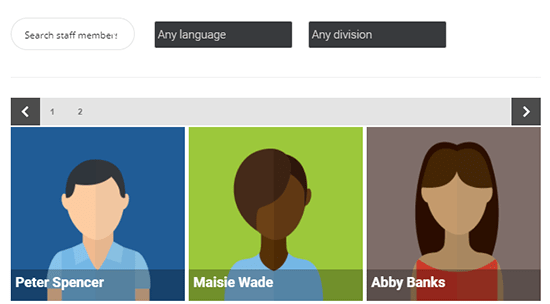](https://ajaxsearchpro.com/staff-search-filter/)
This tutorial is to help you re-create the [Staff search and Filter](https://ajaxsearchpro.com/staff-search-filter/) example from the demo page. Please note, that the example on the demo uses a different post type ‘staff’ with custom fields and taxonomies. In this tutorial we are going to use posts and post categories and tags as filters. The outcome is the same – a search bar and options in a row, and results in a separate row.
## Configuring the search for this layout (optional)
After you have created a search instance for this layout, follow these steps to make it look almost identical to that example.
#### Step 1 – Loading the theme & Behavior
On the *Theme Options* panel, choose any of the Plain themes, I used *Playin Round isotopic*. Wait for it to load, and the proceed to the next step.

I also want to keep the results open whenever the user clicks outside the results container.

#### Step 2 – category or taxonomy filter
Now, let us create two filters. I have decided to use two separate filters, one for categories and one for tags. To create the category filters, go to the *Frontent Search Settings -> Categories & Taxonomy terms* panel.

Since we want a drop-down layout, but by default it will display checkboxes, click on the *Change display mode* button to change that as well.

I also want the filters to display the "Choose one" option by default, so the user can set the filters later on.

#### Step 3 – tags filter
Now switch to the Post Tags panel to make a tags filter as well.

#### Step 4 – correct filter box layouts
Now we have two filters, but the layout is not exactly how we need it. So click on the General sub-panel and change these options as well. These options will ensure, that:
* The settings switch is not visible, as we don’t need it
* The settings box is visible by default
* The settings box position is bloc, not a hover below the search bar
* and that the layout prefers flexing through the page width first, not as columns first.

#### Step 5 – hiding generics
Since we don’t want any generic selectors (like exact matches, search in content etc..), just remove them on the same panel as before (scroll down), by clicking on the (-) button on each item.

#### Step 6 – Auto populate
Enabling the auto populate feature is also a nice addition, as by default the plugin will show results on page load.

#### Step 7 – A few more cosmetics
These steps are optional, it is just the sake of complete guide. Additionally you can change the results title font to a white colour, as it fits much better. Any vibrant colour will do, actually.

The loading icon can be positioned to the results box, if desired.


Turning off the content from the results can be visually more appealing for the isotopic results layout too.

### Solution 1: Using Gutenberg editor
Gutenberg has Rows and Columns, which you can use to add the search shortcodes or blocks.
First, make a 33/66 Column layout, then add the search block to the first, and the settings block to the second column.

After the columns block, add the search results block.

If you experience misalignments, you can use some custom CSS to adjust the settings box margin:
```
.asp_sb, .asp_s {
margin-top: -16px !important;
}
```
### Solution 2: Using the shortcode builder
The plugin has a built in shortcode builder feature, which allows you to make a custom layout for each search element: search bar, settings and results box. To access this feature, click on the *Shortcode Generator* button on the search instance settings page.

After that, a pop-up will show up, which allows you to add/remove certain search box elements, and generates a shortcode output – which you can then use in post/page contents in the editor.
A layout I was using during testing was the following.
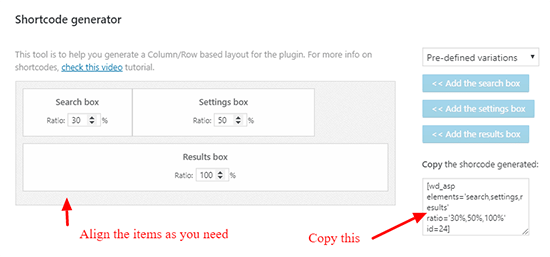
Copy the shortcode generated, and paste it into the page where you want the search filter to be displayed.

#### Optional custom CSS
Sometimes the search bar and the settings alignment can be problematic, as it can be affected by theme CSS as well as other styles. The simplest solution is to add some top margin to the search box, until it seems aligned properly. I usually start with 20px, then increase/decrease it as needed.
This custom CSS can be placed to the Custom CSS input box under the Theme Options panel in the search options.

### Solution 3: Using Visual Composer or other page builder
Page builders offer a great way to simply create and position the page contents without actual coding. Using rows and columns is very easy to re-create this layout. In this example, I have:
* Created 2 rows, marked as *Row 1* and *Row 2* on the picture
* Separated Row 1 to two colums, in 1:4 ratio.
* Placed the Search shortcode element to the first column (Row 1), the Settings shortcode element to the second column (Row 1) and Results shortcode element to the full-width Row 2.
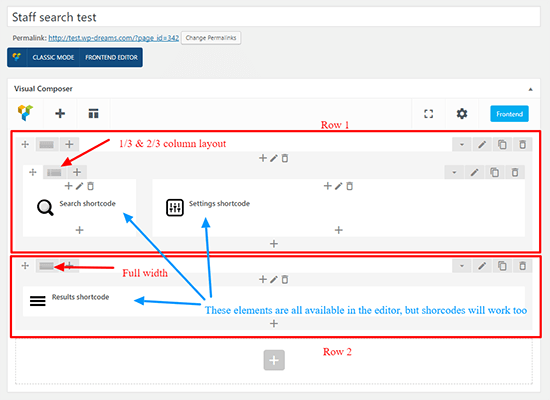
..also, make sure that the correct search instance is choosen for each element.

If you use a different page editor, don’t worry, it definitely supports shortcodes. So basically you can simply place the search, settings and the results shortcodes to these rows, like so:

You can lear more about these shortcode is the [Search shortcodes section](https://wpdreams.gitbooks.io/ajax-search-pro-documentation/content/getting_started/search_shortcodes.html) of the documentation.
(optional) If the search box alignment is higher or lower relative to the settings box, adding positive or negative top margin can do the trick. Visual composer supports that out of the box.

### Solution 3: Using custom HTML code and shortcodes
If you prefer inline HTML, it is possible as well. Use this code within the page editor. Also, make sure to change the shortcode IDs to the search ID in your case.
```markup
[wpdreams_ajaxsearchpro id=1]
[wpdreams_asp_settings id=1 element='div']
[wpdreams_ajaxsearchpro_results id=1 element='div']
```
This is however a much delicate solution, and might require some fine-tuning as well.
# Demo Setup: WooCommerce Search
WooCommerce search example explained
{% embed url="" %}
Ajax Search Pro and WooCommerce Search
{% endembed %}
This tutorial shows how to recreate the [WooCommerce search example](https://ajaxsearchpro.com/woocommerce-search/) page.

## Search Configuration
### Theme
Under the *Theme & Styling -> Overall box Layout* panel choose the **Simple Blue Horizontal** theme.

### Taxonomy term Filters
Go to the *Frontend Search Settings -> General* panel and change the *Search Settings Position* option to **Block or Custom,** and also make it **visible** by default.

Now let's create the filters. First switch to the *Taxonom Terms filters* panel and choose the terms you want to display. In your case we choose "all" from **product\_cat, pa\_color** and **pa\_size**

Now to change how the filters appear, click on the blue **Display Mode** button. For every selected taxonomy box you can choose the filter types and the related options.

That's it, now you will have taxonomy term filters available.
### Custom field filters
In this example we have a simple price filter. To make that, switch to the *Custom Fields* panel, and make a filter on the **\_price** field, choose **Range Slider** as the type. **Leave empty the Slider Range** so the min/max price is parsed from the database.

### Organize and Advanced
You can change the order of the filter group fields on the Advanced panel. If you want to display results where the price is not specified then make sure that the **Allow results with missing custom fields, when using custom field selectors?** option is also **enabled**.

### Result Fields
In the results we want to display some taxonomy terms as well as the price. For that we are using the [Advanced Title and Content field](https://documentation.ajaxsearchpro.com/advanced-options/advanced-title-and-description-fields) features. That allows displaying categories, custom fields etc.. within the result contents.

Go to the *Advanced Options -> Content & Fields* panel, and change the Advanced Description field accordingly. In the example we used:
```
{_price_html}
[
Category: {__tax_product_cat}
]
[
Size: {__tax_pa_size}
]
[
Color: {__tax_pa_color}
]
```
This displays the price, the product categories, the product sizes and product colors in the result contents.

## Adding the Search and Results to the page
In the example we are using the Gutenber editor, but you can use any page builder or even the classic editor if you want to - all you need is the [search and results shortcodes](https://documentation.ajaxsearchpro.com/getting-started/search-shortcodes), which look like this:
```
[wd_asp id=1]
```
..and:
```
[wpdreams_ajaxsearchpro_results id=1]
```
We simply added the search shorcode into a column, and the results shortcode into shortcode below the column row like this:

That's it!
# Demo setup: WooCommerce Shop Search and Filter
Placing Ajax Search Pro search and filters to the WooCommerce shop page
{% hint style="info" %}
This tutorial explains how to replicate the [shop search demo](https://ajaxsearchpro.com/shop-search/) setup exactly.
{% endhint %}
{% embed url="" %}
WooCommerce shop page live search
{% endembed %}
## Search Setup
First off, create a new search instance and open it's settings. (click on the image to magnify)
### General Options
On the `Search Sources -> Post Type Search` panel choose the Products post type.
Next, go to the `Search Behavior -> Search | Elementor | Archive | Shop page Live Results` panel and turn On the live loader for the WooCommerce Shop page.
### Search Filters
On the `Frontend Search Settings -> General` panel let's set the search settings to Visible and to a Block layout. This will make sure the Search Filters are visible at all time.
Next, let's quickly create the search filters. On the demo we are using the default WooCommerce demo data - which has 3 taxonomies as well as a custom field for a price.
{% hint style="info" %}
To learn more about filters, please check the [search filters](https://documentation.ajaxsearchpro.com/frontend-search-settings) documentation
{% endhint %}
#### Taxonomy Term Filters
Let's now switch to the `Categories & Taxonomy Terms` subpanel and select the taxonomies we want to be displayed on the filters.
In our case we will select Product Categories, Product Color and Product Size. For each one we drag the `Use all from ...` option value to the right side. This will create a filter box for each taxonomy.
Next, click on the blue `Change Display Mode` button. This allows changing the filter properties. We set the following properties:
* Product categories - *Display as Multiselect*
* Product Color - *Display as Checkboxes* & Display the "Select All" option
* Product Size - *Display as Radio* & Display the "Choose one/Any" option
That's it for the taxonomy filters :smile:
#### Price Slider Filter
Price in WooCommerce is stored in the "\_price" custom field, so it's super easy to use in filters.
Switch to the Custom Fields subpanel and create a new filter with the following details:
* Title Label: *Price*
* Custom field: `_price`
* Type: *Range Slider*
* Slider Range: Make sure it's empty, the plugin will fetch the min/max values
* Prefix: *$* and Suffix: *,-*
* Track 1 & Track 2 defaults: Leave empty
That's it, the filters are done!
## Placing the search filter on the Shop Page
This step highly depends on the theme or your exact setup.
In our case, we are using a theme with a Shop Sidebar widget support. Most modern Block themes support that.
### Using a Block Widget
Go to the `Appearance -> Widgets` panel:
* Open up the Shop Sidebar and Search for Ajax Search Pro block
* Chose the search bar we just created (WooCommerce Shop Search)
* Save the page
### Using a Page Builder or Shortcode Block
Page builder often time offer a customizable shop page. In those cases either the Search Block (if supported) or the Search Shortcode can be used in a shortcode block.
The search shortcode can be found on the Ajax Search Pro menu page.
* In your page builder open up the Shop page editor
* Use the search shortcode in a shortcode block anywhere you prefer the search to be displayed
# Demo Setup: Events Search – Events Manager
This tutorial will guide you through all the steps to re-create the [Events Search Demo](https://ajaxsearchpro.com/events-search-and-filter/) example when using the [Events Manager](https://wordpress.org/plugins/events-manager/) plugin. This tutorial is also available for the [The Events Calendar](/miscellaneous/tutorials/demo-setup-events-search-the-events-calendar) plugin users.
## Prerequesites
All you need is a search instance created (working search bar). If you don’t know what that is, check out: [Ajax Search Pro Documentation – Getting Started](https://documentation.ajaxsearchpro.com/getting-started)
## Configuration
Follow the steps below to recreate the exact same layout as seen on the demo.
### Step 1 – Choosing the Event post type to search
Under the *General Options -> Sources* panel, choose the **Events (event)** custom post type. In the demo setup we use nothing else, but that post type.

### Step 2 (optional) – Loading the theme
Any theme will work with this tutorial – the demo example uses the Underline Blue Vertical. To load that theme, go to the *Theme Options* panel and choose it from the list.

### Step 3 – Filters box visibility
Under the *Frontend search settings -> General* panel change the following options:
* *Show search settings switch on the frontend?* (optional) – OFF
* *Set the search settings to visible by default?* – ON
* *Search settings position* – Block or Custom
* *Column Layout* – Column

### Step 4 – Event date filters
The Event Manager plugin stores the event dates in a datetime format in the **\_event\_start** and **\_event\_end** custom fields.
Lets make both of the date filters under the *Frontend Search Settings -> Custom Fields* panel. Use the screenshots below as reference on how to create them.


### Step 5 – Location filter (optional + custom code)
The Event Manager plugin stores the Locations ins a custom database table, but their API is very professional, thus it is possible to use it to get the locations as well.
First, let’s make a custom field filter on the **\_location\_id** custom field, which stores the ID to the locations.

* Custom field: *\_location\_id*
* Type: *Dropdown*
* Dropdown values:
This will get the location IDs, but we need the titles as well on the front-end. For that, a custom code is required.
[What is this, and where do I put this custom code?](/safe-coding-guideline)
```php
add_filter('asp_pre_get_front_filters', 'asp_locations_pre_get_front_filters', 10, 2);
function asp_locations_pre_get_front_filters($filters, $type) {
if ( $type == 'custom_field' ) {
foreach ($filters as $k => $filter) {
if ( $filter->data['field'] == '_location_id' && class_exists('EM_Locations') ) {
$location_ids = array();
$select_all = false;
foreach ( $filter->get() as $kk=>$item ) {
if ( $item->value == '' ) {
$select_all = $item->label;
} else if ( is_numeric($item->value) ) {
$location_ids[] = $item->value;
}
}
$filter->remove();
$locations = EM_Locations::get( array('location'=>array_unique($location_ids)) );
$locarr = array();
if ( is_array($locations) && count($locations) > 0 ) {
foreach ( $locations as $loc ) {
if ( isset($locarr[$loc->location_town]) ) {
$locarr[$loc->location_town] .= '::' . $loc->location_id;
} else {
$locarr[$loc->location_town] = $loc->location_id;
}
}
if ( $select_all !== false ) {
$filter->add(array(
'value' => '',
'label' => $select_all,
));
}
ksort($locarr);
foreach ( $locarr as $key => $loc ) {
if ( !empty($key) && !empty($loc) )
$filter->add(array(
'value' => $loc,
'label' => $key,
));
}
}
$filters[$k] = $filter;
}
}
}
return $filters;
}
```
### Step 6 – Event Category filter
The Event Category is a taxonomy, so it is time to create a taxonomy term filter as well. Go to the *Frontend Search Settings -> Categories & Taxonomy Terms* panel and choose the *tribes\_event – tribe\_events\_cat* taxonomy, then drag the ‘Use all..’ option to use all of them.


### Step 7 – Date in results content

Under the *Advanced Options -> Content* panel, look for the **Advanced Description Field** option.
This field can be used to display custom field values within the results content, using the {field\_name} syntax. For more detailed intofmation, please check the [Advanced Title and Description field Documentation](https://documentation.ajaxsearchpro.com/advanced-options/advanced-title-and-description-fields).
Enter this value there to have the exact same layout as the demo:

That is it. After saving the options and placing the search shortcode somewhere on your site, you should be seeing the same search layout as seen on the demo page.
# Demo Setup: Events Search – The Events Calendar
This tutorial will guide you through all the steps to re-create the [Events Search Demo](https://ajaxsearchpro.com/events-search-and-filter/) example when using the [The Events Calendar](https://wordpress.org/plugins/the-events-calendar/) plugin. This tutorial is also available for the [Events Manager](/miscellaneous/tutorials/demo-setup-events-search-events-manager) plugin users.

## Prerequesites
All you need is a search instance created (working search bar). If you don’t know what that is, check out: [Ajax Search Pro Documentation – Getting Started](https://documentation.ajaxsearchpro.com/getting-started)
## Configuration
Follow the steps below to recreate the exact same layout as seen on the demo.
### Step 1 – Choosing the Event post type to search
Under the *General Options -> Sources* panel, choose the **Events (tribe\_events)** custom post type. In the demo setup we use nothing else, but that post type.

### Step 2 (optional) – Loading the theme
Any theme will work with this tutorial – the demo example uses the Underline Blue Vertical. To load that theme, go to the *Theme Options* panel and choose it from the list.

### Step 3 – Filters box visibility
Under the *Frontend search settings -> General* panel change the following options:
* *Show search settings switch on the frontend?* (optional) – OFF
* *Set the search settings to visible by default?* – ON
* *Search settings position* – Block or Custom
* *Column Layout* – Column

### Step 4 – Event date filters
The Event Manager plugin stores the event dates in a datetime format in the **\_EventStartDate** and **\_EventEndDate** custom fields.
Lets make both of the date filters under the *Frontend Search Settings -> Custom Fields* panel. Use the screenshots below as reference on how to create them.


Events ending before filter configuration
For more information about custom field filter, please check the [Custom field filters documentation](https://documentation.ajaxsearchpro.com/frontend-search-settings/custom-field-selectors).
### Step 5 – Venue filter (optional, difficult)
The plugin stores the Venue IDs in the **\_EventVenueID** custom field. The Venues itself are custom post types, and this field refers to them. Therefore the Venue IDs and names have to be manually entered to the filter, but first we need to find the Venue ID, Name pairs.
#### Finding the Venue IDs
Open up your notepad, or grab a piece of paper, and open up the *Events -> Venues* submenu.

Click on each Venue one-by-one. The Venue ID well be visible in the browser address bar after the **post=** query argument.

Take a note of the IDs and the Venue names. In the demo the venue IDs were 3048, 3051 and 3056. Based on this information it is now possible to construct the filter.

For more information about custom field filter, please check the [Custom field filters documentation](https://documentation.ajaxsearchpro.com/frontend-search-settings/custom-field-selectors).
### Step 6 – Event Category filter
The Event Category is a taxonomy, so it is time to create a taxonomy term filter as well. Go to the *Frontend Search Settings -> Categories & Taxonomy Terms* panel and choose the *tribes\_event – tribe\_events\_cat* taxonomy, then drag the ‘Use all..’ option to use all of them.

Then, click the **Change display mode** button, scroll to the *tribe\_events\_cat taxonomy*, and change the display mode to *dropdown*. You can also define the ‘Choose all/any’ option while there.

### Step 7 – Date in results content

Under the *Advanced Options -> Content* panel, look for the **Advanced Description Field** option.
This field can be used to display custom field values within the results content, using the {field\_name} syntax. For more detailed intofmation, please check the [Advanced Title and Description field Documentation](https://documentation.ajaxsearchpro.com/advanced-options/advanced-title-and-description-fields).
Enter this value there to have the exact same layout as the demo:

That is it. After saving the options and placing the search shortcode somewhere on your site, you should be seeing the same search layout as seen on the demo page.
# Compact ‘pop-out’ search bar placement on specific pages only
This quick tutorial will help you configure and place a pop-out search bar to the sidebar of your site using a custom code – allowing inclusion or exclusion from specific pages.
For generic use please check the [Compact Box Layout documentation](https://wpdreams.gitbooks.io/ajax-search-pro-documentation/content/layout_settings/compat_search_box_layout.html) (includes a video tutorial).

## Quick configuration
Make sure to enable the compact box layout mode under the *Layout Options -> Compact box layout* panel. For this tutorial I recommend the following configuration:
* Compact layout final width: *320px*
* Compact search box position: *fixed* (or *absolute* may also work)

## Positioning with a custom code – allowing exclusions/inclusions
Add this custom code to the **functions.php** in your theme/child theme directory (copy from line 3 only!). Before editing, please make sure to have a full site back-up just in case!
Adjustable variables within the code (lines 7-17):
* **$id** -> the search instance ID
* **$exclude\_on\_pages** -> list of page IDs, where the search should not be visible. Leave it empty, if not in use.
* **$include\_on\_pages** -> list of page IDs, where the search should be visible. Leave it empty, if not in use.
* **$exclude\_on\_archives** -> true or false. If true, then then the search will not be visible on post type archives.
* **$exclude\_on\_tax\_archives** -> list of taxonomies. The search will not be visible on listed taxonomy archive pages.
* **$exclude\_on\_front** -> true or false. If true, the search will not be visible on the front page.
[What is this, and where do I put this custom code?](/safe-coding-guideline)
```php
add_action('wp_footer', 'asp_insert_sc_to_footer', 99999);
function asp_insert_sc_to_footer() {
// Replace this with the search ID you want to use
$id = 1;
// Comma separated list of Pages (or any CPT) where the search should be excluded. Leave it empty to ignore.
$exclude_on_pages = '1, 2, 3';
// Comma separated list of Pages (or any CPT) where the search should be excluded. Leave it empty to ignore.
$include_on_pages = '';
// Exclude on archive pages?
$exclude_on_archives = false;
// Exclude on category (or any taxonomy) archive pages. Comma separated list of taxonomies.
$exclude_on_tax_archives = 'category, tag';
// Should it be visible on the front page? true or false
$exclude_on_front = false;
// -------- DO NOT TOUCH BELOW ----------
if ( is_front_page() && $exclude_on_front )
return false;
if ( is_archive() && $exclude_on_archives )
return false;
$eta = array_filter( explode(",", str_replace(' ', '', $exclude_on_tax_archives)), 'strlen' );
foreach ( $eta as $_eta ) {
if ( ($_eta == 'tag' || $_eta == 'post_tag') && is_tag() )
return false;
if ( $_eta == 'category' && is_category() )
return false;
if ( is_tax($_eta) )
return false;
}
$epa = array_filter( explode(",", str_replace(' ', '', $exclude_on_pages)), 'strlen' );
$ipa = array_filter( explode(",", str_replace(' ', '', $include_on_pages)), 'strlen' );
$pid = get_the_ID();
if ( !is_wp_error($pid) ) {
if ( in_array($pid, $ipa) || !in_array($pid, $epa) ) {
echo do_shortcode('[wd_asp id='.$id.']');
}
} else {
echo do_shortcode('[wd_asp id='.$id.']');
}
}
```
# Index Table – Indexing ACF repeater field titles and contents
Using this custom code, you can enable indexing of [Advanced Custom Fields](https://wordpress.org/plugins/advanced-custom-fields/) repeater field post titles and/or contents for the current post. Change the following parameters in the **$arguments** variable in the first part of the code as you need them:
* **'field\_names'** -> one or more repeater field names, separated by comma
* **'index\_title'** -> true or false, to index the post titles found in the repeater field
* **'index\_content'** -> true or false, to index the post contents found in the repeater field
* **'run\_shortcodes'** -> true or false, to run the shortcodes in the content fields
[What is this, and where do I put this custom code?](/safe-coding-guideline)
```php
add_filter(
'asp_index_cf_contents_before_tokenize', // do not change this
function ( $content, $post ) {
// Change these arguments to your needs
$arguments = array(
'field_names' => 'field1, field2', // Comma separated list of field names to index
'index_title' => true, // To index the related post title
'index_content' => true, // To index the related post content
'run_shortcodes' => true, // To run shortcodes within Flex element contents
);
// --------------------- WARNING: DO NOT CHANGE ANYTHING BELOW -------------------------
$o = new class($arguments, $content, $post) {
/**
* @var string
*/
private string $field_names = 'field1, field2';
/**
* @var bool
*/
private bool $index_title = true;
/**
* @var bool
*/
private bool $index_content = true;
/**
* @var bool
*/
private bool $run_shortcodes = true;
/**
* @var string
*/
private string $content;
/**
* @var WP_Post
*/
private WP_Post $post;
/**
* @param array $args
*/
public function __construct( array $args, $content, $post ) {
$this->field_names = $args['field_names'] ?? $this->field_names;
$this->index_title = $args['index_title'] ?? $this->index_title;
$this->index_content = $args['index_content'] ?? $this->index_content;
$this->run_shortcodes = $args['run_shortcodes'] ?? $this->run_shortcodes;
$this->content = $content;
$this->post = $post;
}
/**
* @param mixed $any
* @param int $level
* @return string
*/
private function anyToString( $any, int $level = 0 ): string {
$str = '';
if ( is_array( $any ) ) {
foreach ( $any as $sub_arr ) {
$str .= ' ' . $this->anyToString( $sub_arr, $level + 1 );
}
} elseif ( !is_object($any) ) {
$str = (string) $any;
}
return $str;
}
public function fetchRepeater(): string {
$content = $this->content;
$post = $this->post;
if ( function_exists('get_field') ) {
$fn_arr = explode(',', $this->field_names);
foreach ( $fn_arr as $field_name ) {
$field_name = trim($field_name);
if ( empty($field_name) ) {
continue;
}
$args = array(
'p' => $post->ID, // ID of a page, post, or custom type
'post_type' => 'any',
);
$my_query = new WP_Query( $args );
while ( $my_query->have_posts() ) :
$my_query->the_post();
$items = get_field($field_name);
if ( empty($items) ) {
continue;
}
if ( is_array($items) ) {
foreach ( $items as $item ) {
if ( isset($item->ID) ) {
if ( $this->index_title ) {
$content .= ' ' . get_the_title($item->ID);
}
if ( $this->index_content ) {
$content .= ' ' . apply_filters('the_content', get_post_field('post_content', $item->ID));
}
} elseif ( is_array($item) || is_string($item) ) {
if ( $this->run_shortcodes ) {
$content .= ' ' . do_shortcode( $this->anyToString($item));
} else {
$content .= ' ' . $this->anyToString($item);
}
}
}
} elseif ( is_string($items) ) {
$content .= ' ' . $items;
}
endwhile;
}
}
return $content;
}
};
return $o->fetchRepeater();
},
10,
2
);
```
# Change Suggested Phrases conditionally
The plugin provides a filter for developers to apply changes to the Suggested Phrases (beneath the search bar) on certain conditions.

You can put the function you need from below in your active themes directory into the **functions.php** file ( *wp-content/themes/{your\_theme}/functions.php* )
## Change phrases based on a condition
This code will allow displaying alternative keywords if the post ID is within an array of specified post IDs.
* Change the **$cpt\_array** variable to the post/page IDs where you want to display the alternative keywords.
* Change the **$alt\_phrases** variable to the keywords you want to display.
* Change the **$allow\_home** variable true if one of the page IDs you allowed is used as the home page.
```php
add_filter("asp_suggested_phrases", "asp_change_sugg_phrase_cond", 10, 2);
function asp_change_sugg_phrase_cond($phrases, $sid) {
// If the current post/page/cpt IDs is in this array
// then the alternative phrases are displayed.
// Change this to the post/page/cpt IDs you want
$cpt_array = array( 1, 2, 3 );
// The alternative phrases array. Add/remove keywords you want as alternatives.
$alt_phrases = array(
"alt phrase 1",
"alt phrase 2",
"alt phrase 3"
);
// Change this to true if one of the pages is the home page as well
$allow_home = false;
//-- Do NOT change anything below this line! --
$post_id = get_the_ID();
if ( is_home() && !$allow_home) return $phrases;
if ( $post_id === false ) return $phrases;
if ( in_array($post_id, $cpt_array) ) return $alt_phrases;
return $phrases;
}
```
# How to add shortcode to the results content?
Displaying shortcode outputs on the live search results content field
[What is this, and where do I put this custom code?](/safe-coding-guideline)
```php
add_filter( 'asp_results', 'asp_my_custom_shortcodes_in_results', 10, 4 );
function asp_custom_link_results( $results, $search_id, $is_ajax, $args ) {
foreach ($results as $k=>&$r) {
if ( isset($r->post_type) ) {
$r->content .= do_shortcode("[my_custom_shortcode]");
}
}
return $results;
}
```
It is also possible to pass the post ID to the shortcode as a parameter if neccessary:
```php
add_filter( 'asp_results', 'asp_my_custom_shortcodes_in_results', 10, 4 );
function asp_custom_link_results( $results, $search_id, $is_ajax, $args ) {
foreach ($results as $k=>&$r) {
if ( isset($r->post_type) ) {
$r->content .= do_shortcode("[my_custom_shortcode id={$r->id}]");
}
}
return $results;
}
```
# How to add variables to the “redirect to url” or the “show more url”?
This will only work on plugin version **4.9.5** or later!
Both strings are filtered before output, so you can use a custom function to do the job:
[What is this, and where do I put this custom code?](/safe-coding-guideline)\
Change the **$values** array to add/remove query *param=>value* pairs.
```php
// Use this to change the "redirect to url" parameter
add_filter( 'asp_redirect_url', 'asp_add_params_to_url', 1, 10 );
// Use this to change the "show more results url" parameter
add_filter( 'asp_show_more_url', 'asp_add_params_to_url', 1, 10 );
function asp_add_params_to_url( $url ) {
// Array of param names and values
$values = array(
"param1" => "value1",
"param2" => "value2",
"param3" => "value3"
);
// Merge them together
foreach ( $values as $k => $v )
$url .= "&".$k."=".$v;
return $url;
}
```
# Indexing Shortcodes within custom field contents
How to index shortcode contents, which are within custom field contents.
By default shortcodes are not executed in custom field contents before indexing to avoid some known issues. In rare cases - such as using an ACF field with a Tablepress or any other shortcode it is neccessary.
### Steps to get a shortcode indexed in a custom field
* Configure the [index table engine](https://documentation.ajaxsearchpro.com/index-table) as you need it, but don't index yet (Don't click Create New index button, if you did, just reload the page)
* Make sure that the custom field, which contains the shortcode(s) is also selected. In this example I'm using "field\_name" as the field.
* Use the custom code below. [Where do I put the custom code?](/safe-coding-guideline)
* Make sure to change the **$field\_name** variable to the custom field, which contains the shortcode(s)
* Now create the index
* Make sure that the index table engine [is enabled](https://documentation.ajaxsearchpro.com/index-table/enabling-index-table-engine) on the search instance settings as well
The custom code snippet to index custom field with shortcodes:
```php
add_filter(
'asp_post_custom_field_before_tokenize',
function ( $values, $the_post, $field ) {
$field_name = 'field_name';
// Do not change anything below
$new_values = array();
if ( $field === $field_name ) {
foreach( $values as $value ) {
$new_values[] = do_shortcode($value);
}
}
return $new_values;
},
10,
3
);
```
# Post Types
# Index Table - Indexing child post contents to parent
This is useful, if you don't want to search and return certain posts (or posts from a certain post type), but you want to index the contents along with the parent post.
Ex. Returning Forum topics only as results, but also indexing all the replies to that topic
The codes below only work with the [index table](https://documentation.ajaxsearchpro.com/index-table) engine. After the code is applied, the index table needs to be **re-created** for it to apply.
[What is this, and where do I put this custom code?](/safe-coding-guideline)
```php
add_filter('asp_post_content_before_tokenize_clear', 'asp_add_children_to_parent', 10, 2);
function asp_add_children_to_parent($content, $post) {
$children_array = get_children( array('post_parent' => $post->ID) );
if ( !is_wp_error($children_array) )
foreach ( $children_array as $child ) {
$content .= " ".$child->post_content;
}
return $content;
}
```
### Limiting by post type only
```php
add_filter('asp_post_content_before_tokenize_clear', 'asp_add_children_to_parent', 10, 2);
function asp_add_children_to_parent($content, $post) {
if ( $post->post_type == 'topic' ) {
$children_array = get_children( array('post_parent' => $post->ID) );
if ( !is_wp_error($children_array) )
foreach ( $children_array as $child ) {
$content .= " ".$child->post_content;
}
}
return $content;
}
```
# Limit results to specific post IDs only
### Solution #1 - Via back-end option
There is also a [back-end option](https://documentation.ajaxsearchpro.com/advanced-options/excluding-and-including-results/include-by-id) that can be used instead of this code.
### Solution #2 - Via custom code
[What is this, and where do I put this custom code?](/safe-coding-guideline)
```php
add_filter( 'asp_query_args', 'asp_include_only_post_ids', 10, 2 );
function asp_include_only_post_ids( $args, $id ) {
/**
* Enter the post IDs here. The results will be
* limited to these posts/CPT only.
*/
$ids = '1, 2, 3, 4, 5';
$search_ids = 'all'; // Commma separated list of search IDs, if needed
// -- !! Do not change anything below this line !! --
$search_ids = wpd_comma_separated_to_array($search_ids);
if ( in_array('all', $search_ids) || in_array($id, $search_ids) ) {
$ids = wpd_comma_separated_to_array($ids);
if ( is_array($args['post_in']) ) {
$args['post_in'] = array_unique(
array_merge($args['post_in'], $ids)
);
} else {
$args['post_in'] = $ids;
}
}
return $args;
}
```
* **$ids** - comma separated list of Post, Page or any custom post type IDs to restrict the results to
# Filter posts (or CPT) which user can’t access
The only way of checking and filtering the posts not accessible by the current user is during the post processing of the search results.
[What is this, and where do I put this custom code?](/safe-coding-guideline)
```php
add_filter( 'asp_results', 'asp_filter_posts_by_capability', 10, 1 );
function asp_filter_posts_by_capability( $results ) {
foreach ($results as $k => &$r ) {
if ( !current_user_can('read_post', $r->id) )
unset($results[$k]);
}
return $results;
}
```
# Restricting results by user Groups using the Groups plugin by itthinx
To restrict the plugin search results by user groups, when using the [Groups plugin](https://hu.wordpress.org/plugins/groups/), please use the custom code below.
[What is this, and where do I put this custom code?](/safe-coding-guideline)
```php
add_filter('asp_results', 'asp_fix_groups_exclusions', 10, 1);
function asp_fix_groups_exclusions($results) {
// Group based exclusions
if ( class_exists('Groups_Post_Access') ) {
foreach ($results as $k => &$r) {
if ( isset($r->post_type) && !Groups_Post_Access::user_can_read_post($r->id) )
unset($results[$k]);
}
}
// Category based exclusions
if ( class_exists('Groups_Restrict_Categories') ) {
foreach ($results as $k => &$r) {
if ( isset($r->post_type) && !Groups_Restrict_Categories::user_can_read($r->id) )
unset($results[$k]);
}
}
return $results;
}
```
{% hint style="warning" %}
Please note, that this may affect the number of results returned negatively, as this code will remove the unwanted results from the list during the results post processing.
{% endhint %}
# Limiting results to specific posts by parent ID
While there is no option to limit the results pool to posts with specific parents only, it is possible with a filter, very easily.
[What is this, and where do I put this custom code?](/safe-coding-guideline)
```php
add_filter( 'asp_query_args', 'asp_include_only_parent_ids', 10, 2 );
function asp_include_only_parent_ids( $args, $id ) {
/**
* Enter the post/cpt prent IDs here. The results will be
* limited to objects with these parent IDs.
*/
$ids = array(1, 2, 3, 4, 5, 6);
// -- !! Do not change anything below this line !! --
$args['post_parent'] = $ids;
return $args;
}
```
..same code, but to apply only for specific search instances:
```php
add_filter( 'asp_query_args', 'asp_include_only_parent_ids', 10, 2 );
function asp_include_only_parent_ids( $args, $id ) {
/**
* Enter the post/cpt prent IDs here. The results will be
* limited to objects with these parent IDs.
*/
$ids = array(1, 2, 3, 4, 5, 6);
/**
* Search instance IDs you want this code to apply on.
*/
$search_ids = array(1, 2);
// --------------------------------------------------
// --------------------------------------------------
// -- !! Do not change anything below this line !! --
// --------------------------------------------------
if ( in_array($id, $search_ids) )
$args['post_parent'] = $ids;
return $args;
}
```
# Limit results to current page children
Results only where the current post (or page or any cpt) is the parent
[What is this, and where do I put this custom code?](/safe-coding-guideline)
```php
add_filter('asp_query_args', 'asp_add_current_parent_dependency', 10, 1);
function asp_add_current_parent_dependency($args) {
if ( !empty($args['_page_id']) ) {
$args['post_parent'][] = $args['_page_id'];
$args['post_parent'] = array_unique($args['post_parent']);
}
return $args;
}
```
..same code, but to apply only for specific search instances:
```php
add_filter('asp_query_args', 'asp_add_current_parent_dependency', 10, 2);
function asp_add_current_parent_dependency( $args, $id ) {
/**
* Search instance IDs you want this code to apply on.
*/
$search_ids = array(1, 2);
// -- !! Do not change anything below this line !! --
// --------------------------------------------------
if ( !empty($args['_page_id']) && in_array($id, $search_ids) ) {
$args['post_parent'][] = $args['_page_id'];
$args['post_parent'] = array_unique($args['post_parent']);
}
return $args;
}
```
# Excluding posts or CPT by parent ID(s)
[What is this, and where do I put this custom code?](/safe-coding-guideline)
```php
add_filter( 'asp_query_args', 'asp_exclude_by_parent_ids', 10, 2 );
function asp_exclude_by_parent_ids( $args, $id ) {
/**
* Enter the post/cpt parent IDs here, that you want to exclude
*/
$ids = array(1, 2, 3, 4, 5, 6);
// -- !! Do not change anything below this line !! --
$args['post_parent_exclude'] = $ids;
return $args;
}
```
..same code, but to apply only for specific search instances:
```php
add_filter( 'asp_query_args', 'asp_exclude_by_parent_ids', 10, 2 );
function asp_exclude_by_parent_ids( $args, $id ) {
/**
* Enter the post/cpt parent IDs here, that you want to exclude
*/
$ids = array(1, 2, 3, 4, 5, 6);
/**
* Search instance IDs you want this code to apply on.
*/
$search_ids = array(1, 2);
// --------------------------------------------------
// -- !! Do not change anything below this line !! --
// --------------------------------------------------
if ( in_array($id, $search_ids) )
$args['post_parent_exclude'] = $ids;
return $args;
}
```
# Searching posts, pages (or any CPT) by specified keywords only, nothing else
In case you don’t want to search titles, content, excerpt or anything at all, only within keywords you specify for each post, it is actually possible.
There is an Ajax Search Pro custom meta box under each post on the editor screen.
If you can’t see this box, make sure it’s enabled for this post type and set to visible: [Ajax Search Pro meta box on editor screen](https://documentation.ajaxsearchpro.com/other-useful-things/meta-box-on-post-editor-screen)
## Configuring the search
By default the plugin looks in titles, content and excerpt as well. First you need to disable all these options on the *General Options -> Sources* panel. However in order for the plugin to work, at least one field must be enabled, therefore make sure that the *Search in post (and CPT) IDs?*option is enabled.
### Step 1: Make sure you have the correct post types enabled

### Step 2: Disable everything, but search in CPT IDs
This step is to make sure that at least on field is enabled, otherwise the plugin might skip the search process completely.

### Step 3: Make sure the Generic front-end filters are unchecked or disabled
* If you don’t need Front-end filters, use **Option 1**
* ..if you use Front-end filters, but not the generic ones, then **Option 2**
* ..if you want to be able to search titles and content, then **Option 3**

## Just add keywords, and it’s done
On the post editor screen, keep adding additional keywords to the meta box (space separated), and the plugin will use those exclusively.

# Showing the post type name in result title or content
Displaying post type name in the live results title or content field
[What is this, and where do I put this custom code?](/safe-coding-guideline)
### Post type name in title
```php
add_filter( 'asp_results', 'asp_show_the_post_type_title', 10, 1 );
function asp_show_the_post_type_title( $results ) {
foreach ($results as $k=>&$r) {
if ( isset($r->post_type) ) {
// Modify the post title
$post_type_obj = get_post_type_object( $r->post_type );
$r->title = $post_type_obj->labels->singular_name . ' - ' . $r->title;
}
}
return $results;
}
```
### Post type name in content
```php
add_filter( 'asp_results', 'asp_show_the_post_type_content', 10, 1 );
function asp_show_the_post_type_content( $results ) {
foreach ($results as $k=>&$r) {
if ( isset($r->post_type) ) {
// Modify the post title
$post_type_obj = get_post_type_object( $r->post_type );
$r->content = $post_type_obj->labels->singular_name . ' - ' . $r->content;
}
}
return $results;
}
```
# Searching within given categories/taxonomy terms only
## Solution #1 - via options (easy)
There is an option to restrict results to terms in the plugin back-end. Please check [this documentation](https://documentation.ajaxsearchpro.com/advanced-options/excluding-and-including-results/include-by-categories-or-terms).
## Solution #2 - Programatical restriction via custom code
For more advanced restrictions you can use the [asp\_query\_args](/hooks/filters/query-and-output/asp_query_args) filter.
```php
add_filter( 'asp_query_args', 'asp_include_only_term_ids', 2, 2 );
function asp_include_only_term_ids( $args, $id ) {
/**
* Enter the desired taxonomy=>terms here.
* For example, if you want to search category 1 and 2, then:
* "category" => "1,2"
*/
$include = array(
"category" => "1,2,3,4",
"post_tag" => "4,5,6,7"
);
// Allow results, that does not have connection with the taxonomies
$allow_empty = true;
// -- !! Do not change anything below this line !! --
if ( !is_array($args['post_tax_filter']) )
$args['post_tax_filter'] = array();
foreach ($include as $tax => $term_string) {
$terms = explode(",", $term_string);
foreach ($terms as $tk => &$tv)
$tv = trim($tv);
$args['post_tax_filter'][] = array(
'taxonomy' => $tax,
'include' => $terms
);
}
return $args;
}
```
# Search only in the same category as the current post or page (single page)
There is no back-end option for this feature, but can be easily achieved by a small custom code. A similar code for [archive pages can be found here](/miscellaneous/post-types/search-only-in-the-same-category-as-the-current-post-or-page-single-page).
[What is this, and where do I put this custom code?](/safe-coding-guideline)
```php
add_filter( 'asp_query_args', 'asp_posts_from_same_cat', 10, 2 );
function asp_posts_from_same_cat($args, $search_id) {
$taxonomy = 'category'; // Enter the taxonomy name
// Do not change anything below
$categories = wp_get_post_terms( $args['_page_id'], $taxonomy, array('fields' => 'ids') );
if ( !is_wp_error($categories) && count($categories) ) {
$args['post_tax_filter'][] = array(
'taxonomy' => $taxonomy, // taxonomy name
'include' => $categories, // array of taxonomy term IDs to include
'exclude' => array(),
'allow_empty' => false // allow (empty) items with no connection to any of the taxonomy terms filter
);
}
return $args;
}
```
# Search only within the current category (or any taxonomy) archive
This code will restrict the search result to the currently active taxonomy term archive.
Change the **$taxonomy** variable on line 3 for which taxonomies the code should apply to.
[What is this, and where do I put this custom code?](/safe-coding-guideline)
```php
add_action('asp_layout_in_form', 'asp_layout_in_form_archive_input', 10);
function asp_layout_in_form_archive_input() {
$taxonomies = 'category, post_tag, product_cat'; // Enter the taxonomy names here
// --- DO NOT CHANGE ANYTHING BELOW THIS LINE ---
$taxonomies = explode(',', $taxonomies);
foreach ( $taxonomies as $k => &$tax )
$tax = trim($tax);
if (
( in_array('category', $taxonomies) && is_category() ) ||
( in_array('post_tag', $taxonomies) && is_tag() ) ||
is_tax($taxonomies)
) {
$obj = get_queried_object();
if ( isset($obj, $obj->term_id) ) {
?>
$term->taxonomy,
'include' => array($term->term_id),
'exclude' => array(),
'logic' => 'AND',
'allow_empty' => false
);
}
}
}
return $args;
}
```
# Filtering pages by page template
Pages can be filtered or restricted via using custom field filters.
Page templates are stored in a custom field called `_wp_page_template` and can be chaged on the page editor screen.
### Filter by page template
To create any visual filter on the page templates, use the `_wp_page_template` custom field to create a custom field filter.
Page template filter
### Restrict results to specific template
To make an invisible restriction, use a hidden type filter to restrict the results to a specific template.
{% hint style="info" %}
If you don't know the tempalte name, make a visual filter (Radio) with the {get\_values} pseudo variable, and the plugin will display the values in the preview. ↑See example above↑
{% endhint %}
Resticting results to a specific template
### Exclude results by specific template
Similarly as on the previous example, using the hidden type filter and the "NOT EXACTLY LIKE" operator will exclude all pages matching the given value.
Excluding results by a template
# Taxonomy Terms
# Displaying taxonomy name in taxonomy term results
This custom code is to display the taxonomy name along with the term results.

[What is this, and where do I put this custom code?](/safe-coding-guideline)
```php
add_filter('asp_results', 'asp_display_tax_name_in_results');
function asp_display_tax_name_in_results($results) {
// Change these variables according to the comments after
$position = 'before'; // 'before' or 'after'
$field = 'title'; // 'title' or 'content'
$delimiter = ' - '; // Characters between the taxonomy name and the field
// --- DO NOT CHANGER ANYTHING BELOW ---
foreach($results as $k=>&$r){
if ( $r->content_type == 'term' ) {
$taxonomy = get_taxonomy( $r->taxonomy );
if ( !is_wp_error($taxonomy) ) {
if ( $field == 'title' ) {
$f = &$r->title;
} else {
$f = &$r->content;
}
if ( $position == 'before' ) {
$f = $taxonomy->labels->name . $delimiter . $f;
} else {
$f .= $delimiter . $taxonomy->labels->name;
}
}
}
}
return $results;
}
```
#### Variable to change in the code
* **$position** (line 4) - 'before' or 'after', where you need to display the taxonomy name
* **$field** (line 5) - The field name, 'title' or 'content'
* **$delimiter** (line 6) - String, which is placed between the taxonomy name and the field
# Limiting taxonomy term results to specific term IDs only
Limiting category, post tag, and other taxonomy term results to specific IDs only
[What is this, and where do I put this custom code?](/safe-coding-guideline)
```php
add_filter('asp_term_query_add_where', 'asp_term_query_add_where_include', 10, 3);
function asp_term_query_add_where_include($args, $s, $s_arr) {
$ids = '1, 2, 3, 4'; // Enter the taxonomy term IDs here to include
// -- DO NOT CHANGE BELOW THIS LINE --
global $wpdb;
$ids = explode(',', $ids);
foreach ( $ids as $k => &$id ) {
$id = trim($id);
if ( $id == '' ) {
unset($ids[$k]);
}
}
if ( count($ids) > 0 ) {
return " AND ($wpdb->terms.term_id IN (" .implode(",", $ids). "))";
}
return '';
}
```
* **$ids** - comma separated list of taxonomy term IDs to restrict the results to
# WooCommerce
# Displaying On Sale products only in WooCommerce
How to display WooCommerce products, which are on sale, and exclude the ones which are not
## Making a hidden filter
Navigate to the **Frontend Search Settings -> Custom Fields** panel, where you can create a new custom field based filter. We are going to use the `_sale_price` WooCommerce field to check if a product is on sale.
### Steps
* Navigate to **Frontend Search Settings -> Custom Fields** panel
* Enter `On Sale Only` as *Title Label*
* Enter `_sale_price` as *Custom Field*
* Choose `Hidden` as *Type*
* Enter `0` as *Hidden value*
* Choose the `MORE THAN` as *Operator*
* Hit `Save` & the `Save all tabs!` buttons
After these changes products with only with a valid sale price will be displayed.
# Ordering product by stock status
### Displaying in stock products first
* On the **General Options -> Ordering** (step 1. & 2.) panel, select the **Custom Field Ascending** as the Primary ordering (step 3.).
* As the custom field name enter **\_*****stock\_status*** (step 4.)
* ..and the custom field type should be **string or date** (step 5.)

---
[Next Page](/llms-full.txt/1)